> For the complete documentation index, see [llms.txt](https://wiki.redmodding.org/cyberpunk-2077-modding/llms.txt). Markdown versions of documentation pages are available by appending `.md` to page URLs; this page is available as [Markdown](https://wiki.redmodding.org/cyberpunk-2077-modding/for-mod-creators-theory/3d-modelling/meshes-and-armatures-rigging/dangle-bones.md).
# Dangle bones
What are Dangle Bones, and how do they work?
## Summary
**Created by @eagul**\
**Published March 20 2023**
This guide will teach you everything you need to know about dangle bones, focussing mostly on hair meshes. However, dangle bones can also be applied to any other mesh
Assumed skill level:\
\- You are familiar with Wolvenkit and Blender.\
\- You know what bones and weights are.\
\- You are able to read and comprehend instructions.
## What are dangle bones?
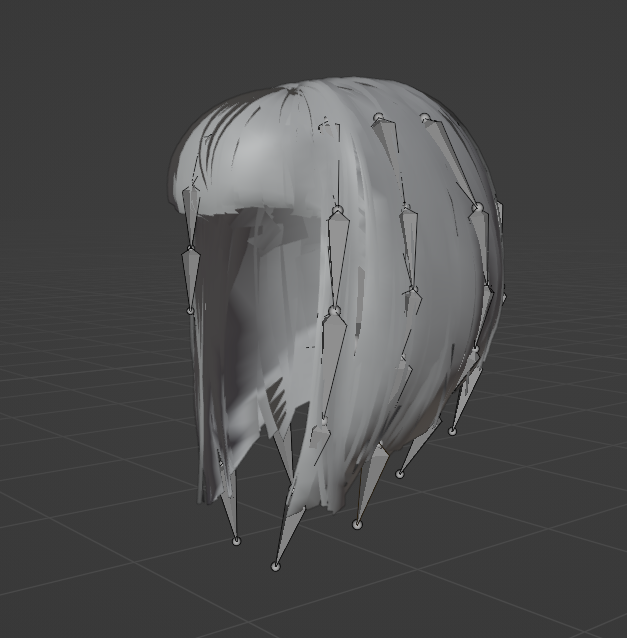
Dangle bones are a 'chain' of linked bones which are used by the game engine to simulate physics (dangle). They're found mostly in hairs, but also in certain clothing items. For a mesh to have working dangle physics, corresponding .rig and .animgraph files are also needed\
\
The image below depicts how a dangle skeleton looks. The .animgraph will move the dangle bone chains, which are connected to the mesh using weights, which will then in turn animate the mesh.
Modern_bob mesh with it's dangle skeleton
## Transfering a skeleton and weights
The easiest way to add physics to a mesh that does not have them, is to transfer them from another mesh.\
If you are doing a hair port, prepare the (static) .mesh and textures first.\
\
1\) Locate a 'donor' mesh. It should have a similar mesh, and physics that you could also see working on your 'new' mesh.\
2\) Add both the donor mesh, together with it's .rig and .animgraph pair, and your new mesh to the project in wolvenkit.\
3\) Import both meshes to blender.\
4\) Using alt+P, clear the parent of the new mesh. Now select the new mesh, and then the armature of the donor mesh, and press ctrl+P, followed by Armature Deform with Empty Groups.\
5\) Select the donor mesh, and secondly the new mesh. Swap to weight paint mode. In the top-left cornet, press 'weights' and then 'transfer weights'. In the bottom-left corner, a small black window will appear. Click it. Set Vertex Mapping to nearest face interpolated, and source layers to 'by name'\
6\) Go into weight paint mode and manually clean up the weights, using the weight transfer as a reference. Optionally duplicate the mesh and move the copy to the side, so you keep an untouched reference.\
7\) Import it back into wolvenkit, and you're done!
## Some tips for editing hair meshes
1\) Oftentimes, you can get away with editing a hair mesh, and not having to touch the physics at all, especially if the changes you are making are fairly small.\
2\) If you move the mesh away from the bones, it might move in unexpected ways. The further the mesh is from the bone, the more of a 'lever' effect will happen. This is particularly noticable when bones are rotating around an axis perpendicular to the one you moved the mesh away on.\
Usually small movements are fine and will not affect the dangles in a noticably bad way. If you do find yourself in a situation where you need to move the skeleton as well, check the 'Moving a Dangle Chain' section.\
3\) Check out UUH4V. It's an amazing resource that will allow you to load multiple hair meshes with each their own rig/anim pair simultanously. Keep in mind that you cannot have 2 of the same rig/anim pair loaded in the same hair slot simultanously, as this will cause unacceptable deforms. You need to merge any 2 meshes that use the same rig/anim pair in blender and import them as one .mesh. \\
## Leverage effect
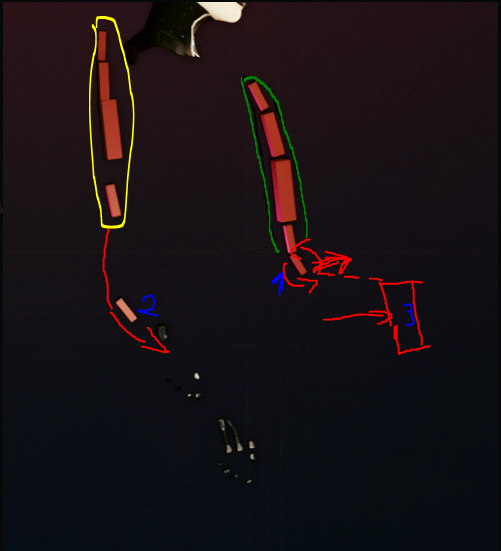
Included is an image of what i mean by the leverage effect. I used a handy little trick here to make bones visible in-game. Overlay a simple mesh over each of the bones in blender and weight paint it completely red. Load the boxes instead of a hair mesh. Edit the material used by the mesh to make it better visible. I used plastic\_red here. Congratulations, you can now clearly see what bones are doing in-game. Hiding the body mesh helps with visibility.\
\
Green circle includes the true location of the dangle bone chain. Meshes in the yellow circle are rigged to the same bones as those in the green circle. Bone 3 is invisible. Upon moving bone 3 to the right (by editing the .rig), bone/mesh 1 rotated slightly, making mesh 2 do a huge leap. If you were to load a hair mesh in the same location as indicated by the yellow circle, you would end up with horrible stretching and deformations, even without exxagerating the effect by moving bone 3.
Sorry for my terrible drawing skills and cursed image.
---
# Agent Instructions
This documentation is published with GitBook. GitBook is the documentation platform designed so that both humans and AI agents can read, navigate, and reason over technical content effectively. Learn more at gitbook.com.
## Querying This Documentation
If you need additional information that is not directly available in this page, you can query the documentation dynamically by asking a question.
Perform an HTTP GET request on the current page URL with the `ask` query parameter, and the optional `goal` query parameter:
```
GET https://wiki.redmodding.org/cyberpunk-2077-modding/for-mod-creators-theory/3d-modelling/meshes-and-armatures-rigging/dangle-bones.md?ask=&goal=
```
`ask` is the immediate question: it should be specific, self-contained, and written in natural language.
`goal` is optional and describes the broader end goal you are ultimately trying to accomplish on behalf of the user. GitBook uses it to tailor the answer towards what is most useful for that goal.
The response will contain a direct answer to the question and relevant excerpts and sources from the documentation.
Use this mechanism when the answer is not explicitly present in the current page, you need clarification or additional context, or you want to retrieve related documentation sections.