> For the complete documentation index, see [llms.txt](https://wiki.redmodding.org/cyberpunk-2077-modding/llms.txt). Markdown versions of documentation pages are available by appending `.md` to page URLs; this page is available as [Markdown](https://wiki.redmodding.org/cyberpunk-2077-modding/for-mod-creators-theory/files-and-what-they-do/file-formats/game-icons-the-inkatlas-file.md).
# Game icons: .inkatlas files
{% hint style="success" %}
Apart has prepared a reference project with an import-ready inkatlas. You can download it [here](https://mega.nz/file/vUUDEQxS#w66XKJ7acIsnXuJcOBEwPPDcm4GFtSa06MzZccAaX8Y).
{% endhint %}
This page explains the `.inkatlas` file and its logic.
##
{% hint style="info" icon="question" %}
#### Wait, this is not what I want!
* Learn how to make [Your own inventory preview icons](/cyberpunk-2077-modding/modding-guides/custom-icons-and-ui/adding-items-preview-images.md)
* Make a [custom Atelier icon](/cyberpunk-2077-modding/modding-guides/items-equipment/adding-new-items/adding-items-atelier-integration.md#generating-an-icon)
* Find templates (by [Apart](mailto:undefined)) in the wiki github's [file section](https://github.com/CDPR-Modding-Documentation/Cyberpunk-Modding-Docs/tree/main/_resources_and_assets/icons)
* Make your own inkatlas with Python: find the script on [The Magnificent Doctor Presto's github](https://github.com/DoctorPresto/Cyberpunk-Helper-Scripts/blob/main/generate_inkatlas.py).\
Check [Running Python Scripts](/cyberpunk-2077-modding/modding-guides/everything-else/running-python-scripts.md) if you don't know how to use this.
* Make your own inkatlas with Photoshop CC (Adobe Creative Suite required): find the plugin on [deadlymustard's github](https://github.com/deadlymustard/inkatlas-utils)
{% endhint %}
## Summary
The .inkatlas is a map file that slices [**textures**](/cyberpunk-2077-modding/for-mod-creators-theory/materials/textures.md) into [sprites](https://stackoverflow.com/a/34575810) (slots), which are then used by the game for pretty much everything that is a picture - from your HUD to peoples' phone avatars to item preview icons in shops or custom atelier images.
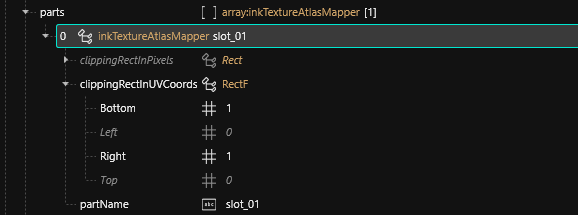
Unlike other games, Inkatlas files don't slice by pixel coordinates but by **percentage** as a float value between 0 and 1 . The starting point is the TOPLEFT corner, the ending point is the BOTTOMRIGHT corner.
Each slot (`inkTextureAtlasMapper`) has four coordinates. This is a single slot across the entire inkatlas:
Slightly out of order
For example: two sprites in column will be written as:\
(y 0,5; x 0) X (x 1; y 0) for upper sprite and (y 1; x0) X (x 1; y 0,5) for lower
## `inkTextureSlot`s
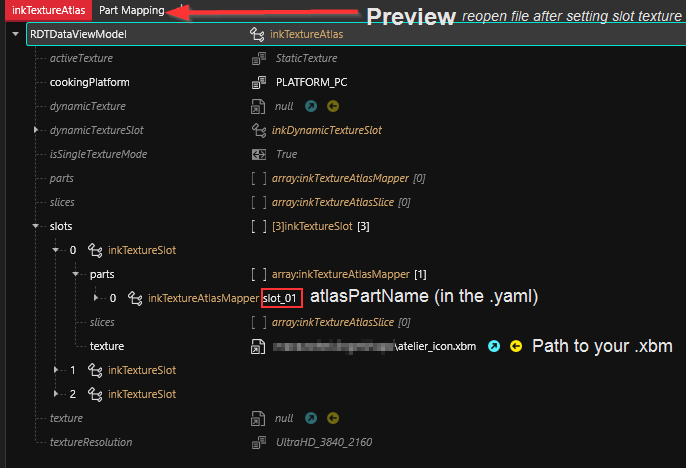
Each inkatlasa has three different inkTextureSlots, which support different texture resolutions. For the purpose of modding, it is enough if you work with inkTextureSlot 0 (the first one in the list).
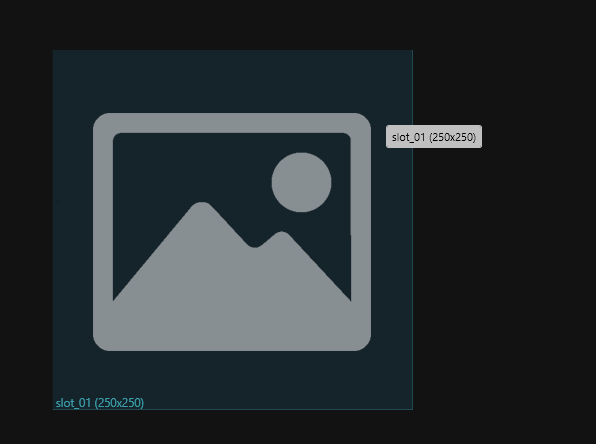
If an existing xbm is hooked up, the `Part Mapping` tab will appear, where you can check which parts of your image correspond to each slot name.
{% hint style="warning" %}
As of Wolvenkit 8.11.1, this requires reopening the file.
{% endhint %}
## Inkatlas: Slot names
You target sprites (slots in the inkatlas) via the `atlasPartName` property:
Any atlasPartName in the `yaml` must correspond with the name of a part in the inkTextureAtlasMapper. If the corresponding entry can't be found, an empty icon will be displayed.
You can change field names at your leisure. Depending on the template, there are a bunch of slotIcons already hooked up.
You can see which sprite is targeted by any given entry in the `Part Mapping:`
If you don't have a partsMapping tab, check your texture path and reopen the InkAtlas
---
# Agent Instructions
This documentation is published with GitBook. GitBook is the documentation platform designed so that both humans and AI agents can read, navigate, and reason over technical content effectively. Learn more at gitbook.com.
## Querying This Documentation
If you need additional information that is not directly available in this page, you can query the documentation by asking a question.
Perform an HTTP GET request on the following URL with the `ask` and `goal` query parameters:
```
GET https://wiki.redmodding.org/cyberpunk-2077-modding/for-mod-creators-theory/files-and-what-they-do/file-formats/game-icons-the-inkatlas-file.md?ask=&goal=
```
`ask` is the immediate question: it should be specific, self-contained, and written in natural language.
`goal` is what the user is ultimately trying to achieve, the reason they need the answer. Sharing it helps GitBook give you a better, more relevant answer. A goal is most helpful when it describes the outcome the user wants rather than restating the question. For example, with `ask=how do I create an API token`, a goal like `automate deployments from our CI pipeline` lets GitBook tailor the answer to that use case.
The response will contain a direct answer to the question and relevant excerpts and sources from the documentation.
Use this mechanism when the answer is not explicitly present in the current page, you need clarification or additional context, or you want to retrieve related documentation sections.