> For the complete documentation index, see [llms.txt](https://wiki.redmodding.org/cyberpunk-2077-modding/llms.txt). Markdown versions of documentation pages are available by appending `.md` to page URLs; this page is available as [Markdown](https://wiki.redmodding.org/cyberpunk-2077-modding/modding-guides/items-equipment/recolours-and-refits/refiting-3d-ports-t-pose-to-a-pose.md).
# Refiting 3D Ports: T-pose to A-Pose
Or how to fit ported garments to Cyberpunk's "A Pose"
## ▶ Summary
> **Created & Published:** March 2 2025 by [PinkyJulien](mailto:undefined)\
> [Original guide written on Tumblr](https://www.tumblr.com/pinkyjulien/758176432758374401/hi-can-i-ask-if-you-perhaps-have-a-tip-for)
For a lot of ports, the first step is usually getting the garment to fit the Cyberpunk' bodies "A" pose\
This tutorial will guide you in tackling this first step!
For this guide, you will need:
* Recent version of [Blender](/cyberpunk-2077-modding/for-mod-creators-theory/3d-modelling/blender-getting-started.md)
* Basic modding knowledge
* Know your ways around [Blender](/cyberpunk-2077-modding/for-mod-creators-theory/3d-modelling/blender-getting-started.md) and have some [basic garment refiting](/cyberpunk-2077-modding/for-mod-creators-theory/3d-modelling/mesh-sculpting-techniques.md) knowledge
Depending on what type of garment you want to port, and from where you go it, there are multiple ways to tackle refiting it to fit Cyberpunk' bodies "A-pose"
***
## ◼ Example 1: My model is rigged with custom controls
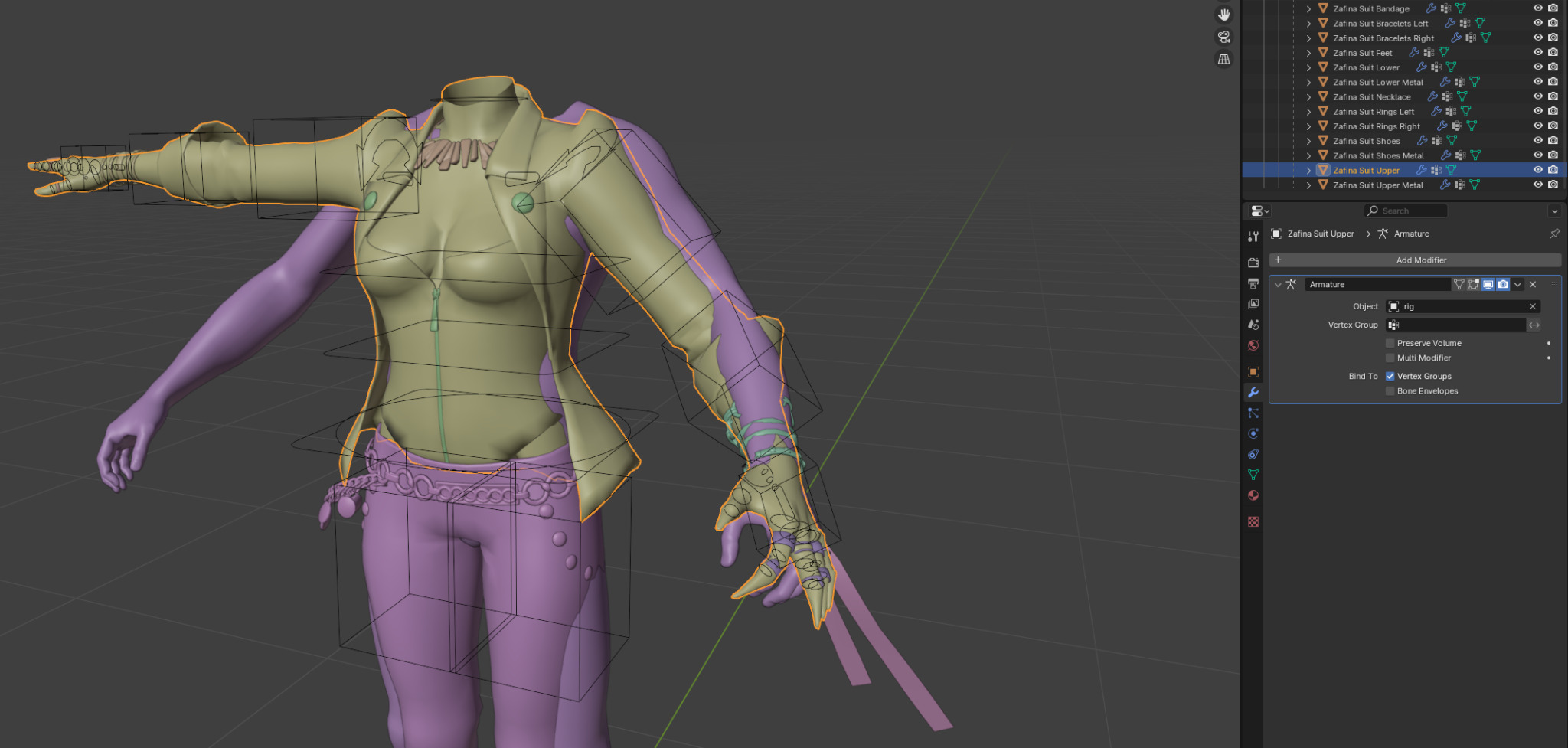
Most models that are shared for 3D render purposes *(downloaded from Open3DLab or SmutBase, for example)* will come with their own rigs and their own custom skeleton controls; this is the easiest type of model to refits to CP77's A pose!
Select the RIG controls and enter Pose Mode,\
you'll be able to rotate the controls to fit the model over the CP77 body
If the different submeshes doesn't not automatically follow the rig, make sure they have an Armature modifier with the correct Rig set in it
***
## ◼ Example 2: My model has a rig
Refiting rigged models without custom controls will be similar to the first example!\
Some models come with their own rigs *(models directly extracted from games with modding tools that have rig options, for example)*
It's a tiny bit less practical than refiting custom control models cause you'll have to find and move the right bones needed to affect the sleeves in the desired way
Enter Pose Mode and rotate the bones around
Don't hesitate to also move the bones or/and the model itself - don't stick to only rotating it\
The goal is to make it fit the CP77 Body; you don't need to pay attention to the original model fitting into its original rig it came with *(you will delete it later anyway)*
***
## ◼ Example 3: My model has no rig - we ~~die~~ refit like men
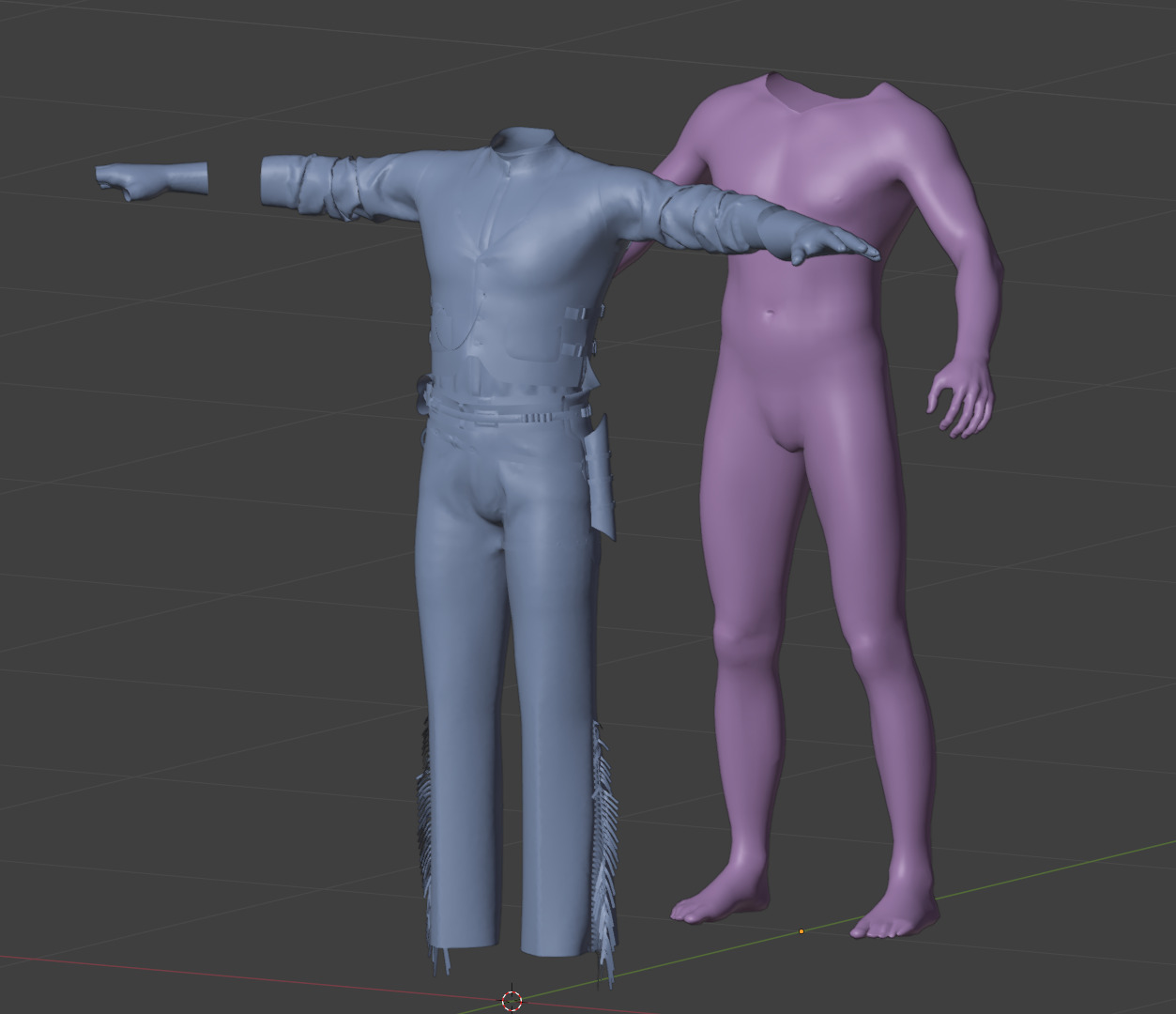
If you're porting models directly from ArtStation, Sketchfab or other 3D hosting website, you'll probably get a simple non-rigged model *(same when extracting files from a game with simple modding tools)*
Depending on the pose, I won't lie, this is a pain in the ass 💀✋ so buckle up!
You'll need to work in **Edit Mode** with the desired submesh selected *(if you have multiple submesh, I recommend merging everything together and un-merge them later via the UV islands)*
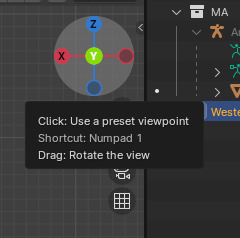
I recommend first working on the front of the model\
You can fix your camera by clicking on the "Y" here
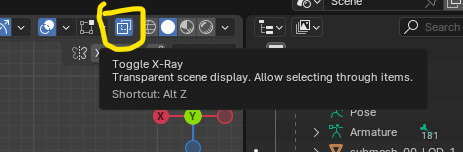
Toggle the **X-ray** vision to be able to select back faces
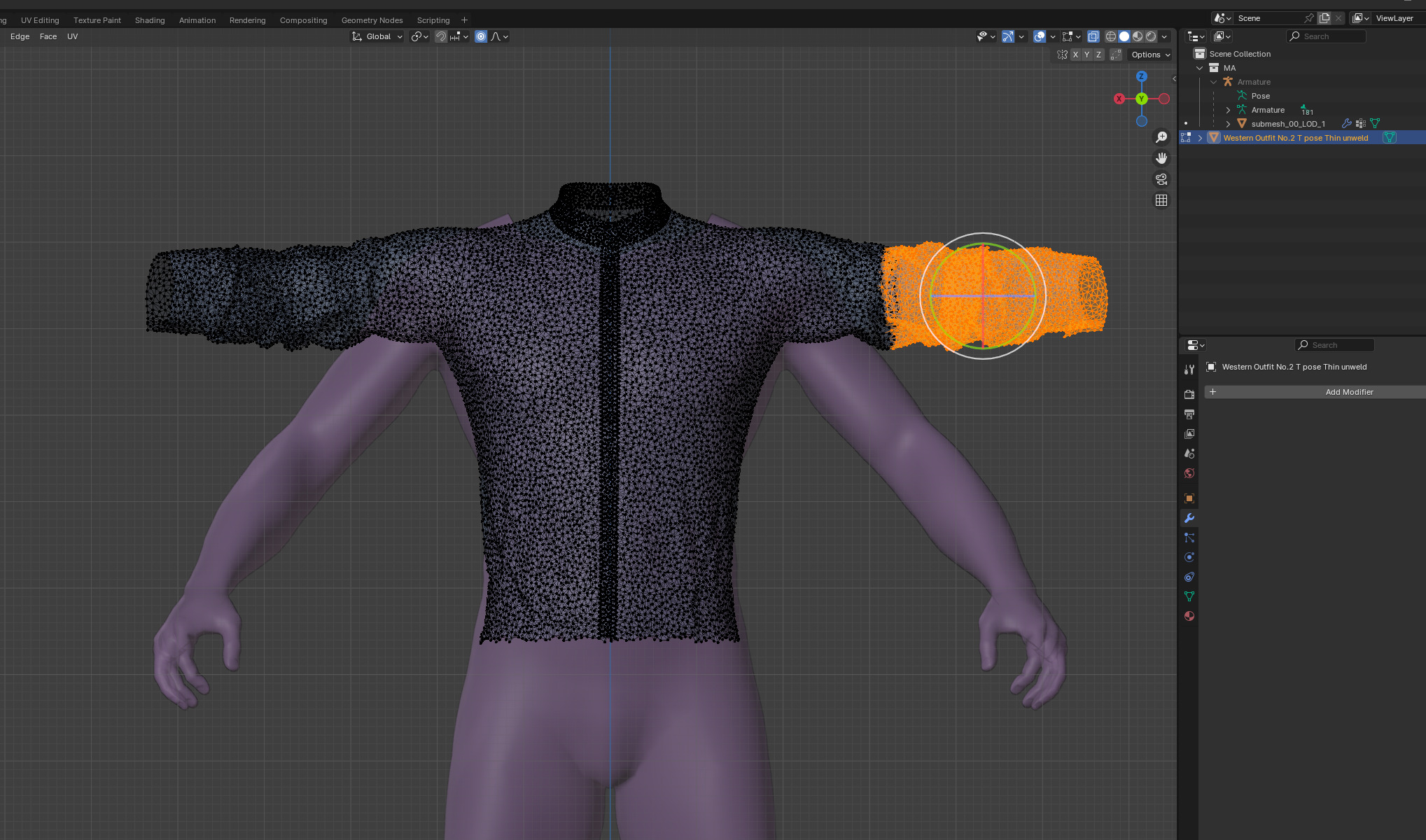
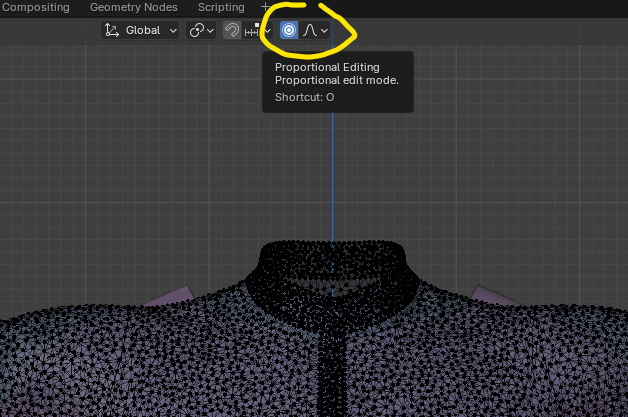
And enable **Proportional Editing**\\
This will come in extremly handy and allow us to "smoothly" rotate / move / edit part of the mesh without creating "staircase" effect and harsh corners
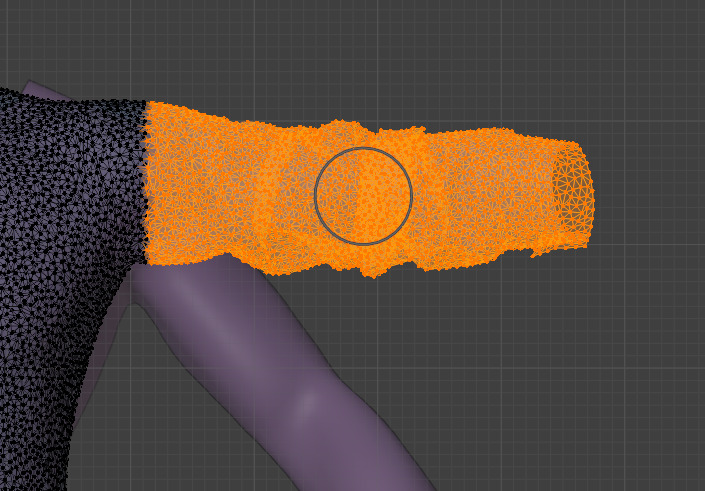
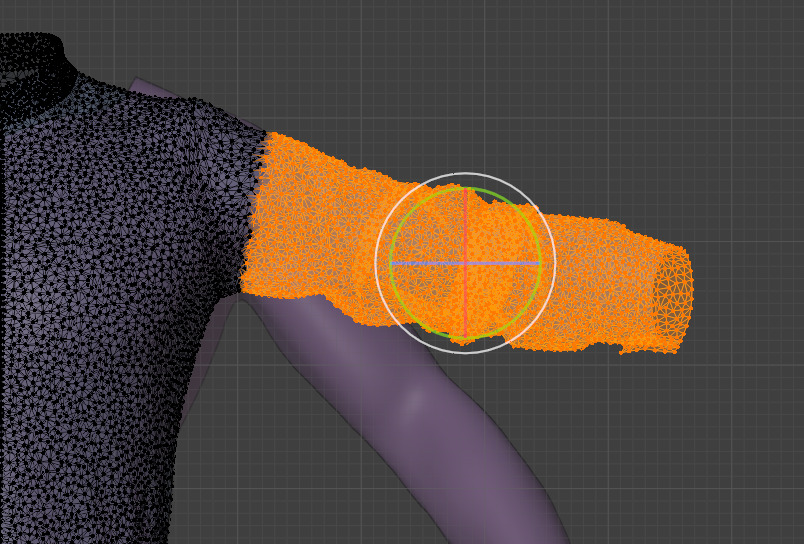
Since we want our garment to go from T-pose to A-pose, I'll first select the whole arm area;\
press **G** to reduce the **Proportional Editing**'s effect radius *(we don't want the chest to be affected)*
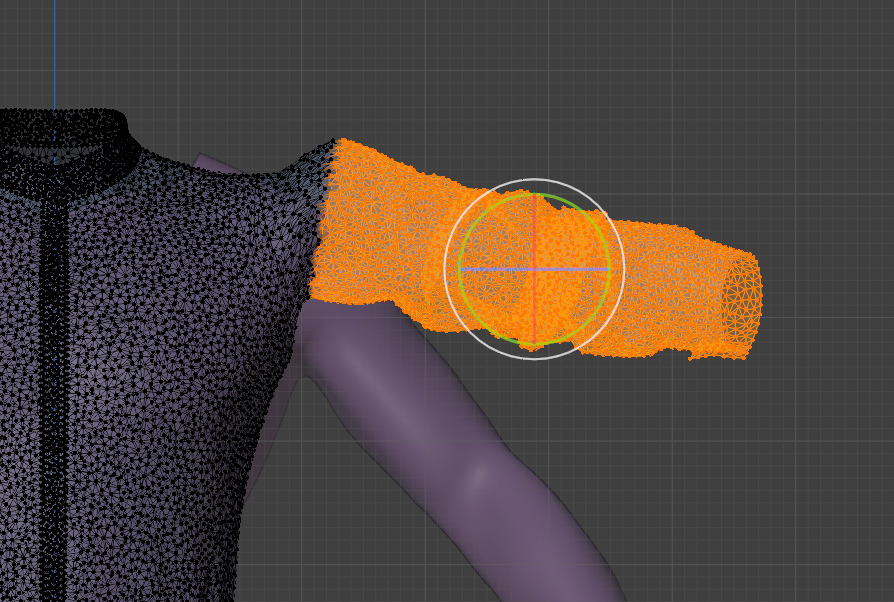
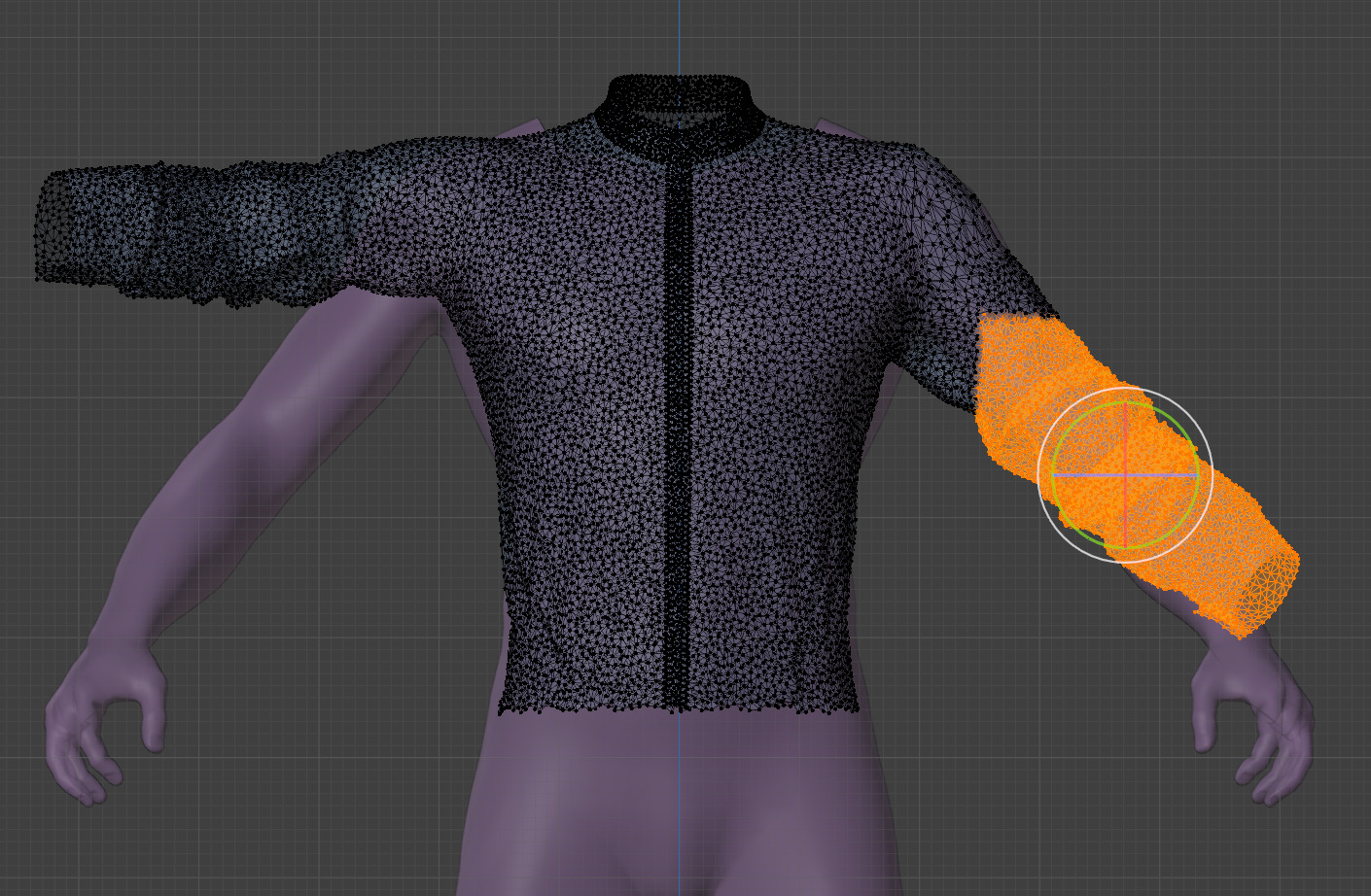
I'll first slightly rotate the sleeve with the Green ring
Notice how the shoulder area follow the rotation as well
Without un-selecting the sleeve, press **G** to enter free movement - increase the proportional editing radius just a little bit to affect all the shoulder - and move the sleeve downward
Do this again and again until the sleeve is in the correct position\
I recommend changing the selection often during the whole procedure *(Take your time!)*
There will be some sagginess near the shoulder and armpit area; that's normal and fixable\
You can edit it now or after the sleeve is correctly fited!
Change the camera view to the side and you can now do the exact same process from this view 🤠
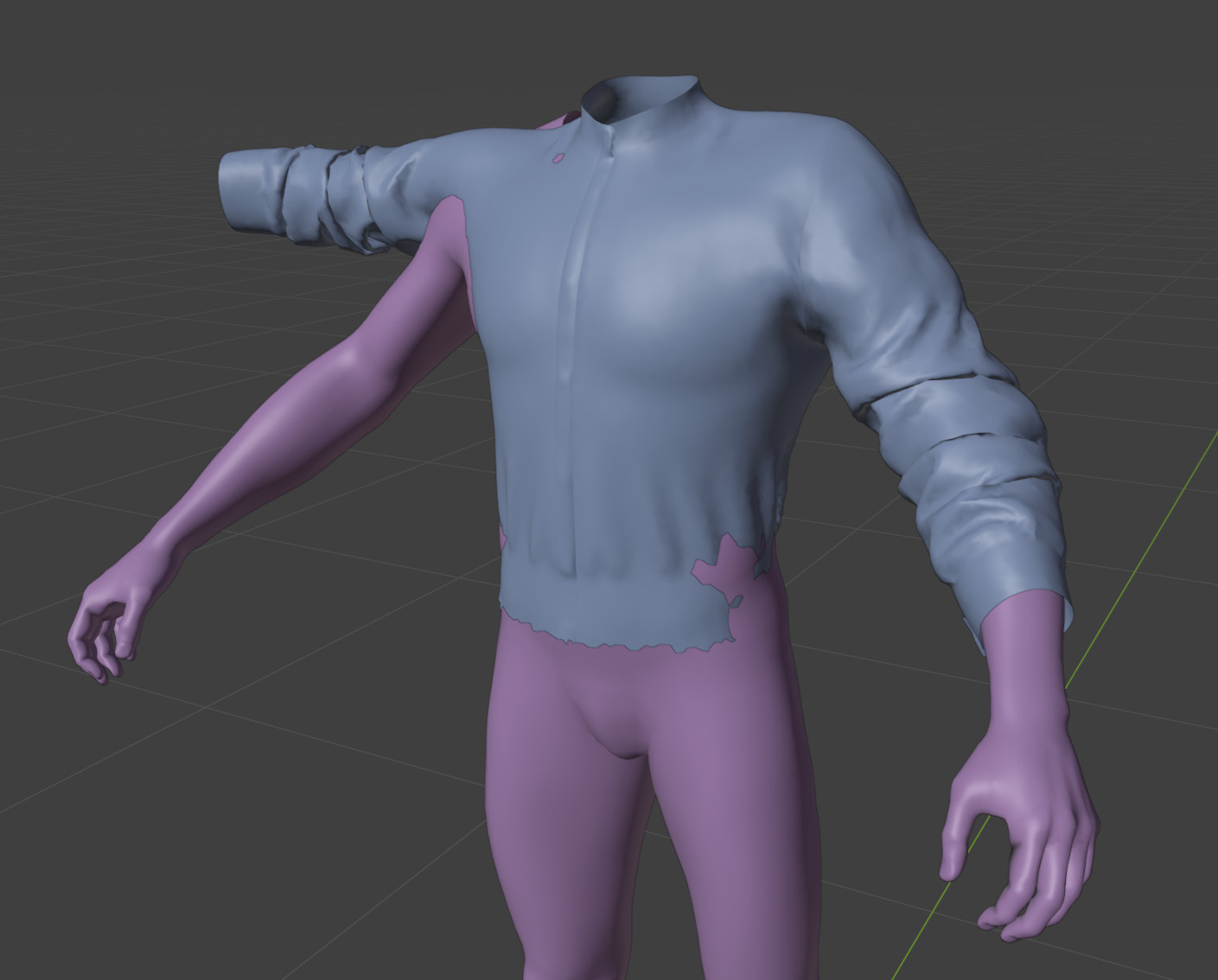
Once you're satisfied with the overall fit of the sleeve, you can edit all the little details like the elbow, the cuffs, the armpit ,the shoulder, etc etc
You can now do the same on the other sleeve!
When refiting garment ports, I recommend using and abusing the "hiding" function (shortcut **H**) to hide part of the mesh while you refit - but be cautious not to accidently hide a part that is close to the area you're editing as it might be affected by the proportional editing, otherwise you will notice gaps or extreme stretch when un-hiding your mesh! Nothing unfixable, but still annoying
Happy refiting! 🙏
---
# Agent Instructions
This documentation is published with GitBook. GitBook is the documentation platform designed so that both humans and AI agents can read, navigate, and reason over technical content effectively. Learn more at gitbook.com.
## Querying This Documentation
If you need additional information that is not directly available in this page, you can query the documentation by asking a question.
Perform an HTTP GET request on the following URL with the `ask` and `goal` query parameters:
```
GET https://wiki.redmodding.org/cyberpunk-2077-modding/modding-guides/items-equipment/recolours-and-refits/refiting-3d-ports-t-pose-to-a-pose.md?ask=&goal=
```
`ask` is the immediate question: it should be specific, self-contained, and written in natural language.
`goal` is what the user is ultimately trying to achieve, the reason they need the answer. Sharing it helps GitBook give you a better, more relevant answer. A goal is most helpful when it describes the outcome the user wants rather than restating the question. For example, with `ask=how do I create an API token`, a goal like `automate deployments from our CI pipeline` lets GitBook tailor the answer to that use case.
The response will contain a direct answer to the question and relevant excerpts and sources from the documentation.
Use this mechanism when the answer is not explicitly present in the current page, you need clarification or additional context, or you want to retrieve related documentation sections.