# Tools: Import/Export UI

{% hint style="info" %}
This page provides the UI documentation for the Import/Export tool. For a documentation of the functionality, see [import-export](https://wiki.redmodding.org/wolvenkit/wolvenkit-app/usage/import-export "mention").

For documentation of the individual import/export settings, find the child-pages of \
[usage](https://wiki.redmodding.org/wolvenkit/wolvenkit-app/usage "mention") -> [import-export](https://wiki.redmodding.org/wolvenkit/wolvenkit-app/usage/import-export "mention")
{% endhint %}

## What are the Import Export tools?

To edit a REDengine file, it first needs to be converted to a more accessible format. This is where the Import/Export tools come in.

Before moving files (or in cases of OCD), please note the [#file-structure](#file-structure "mention")section.

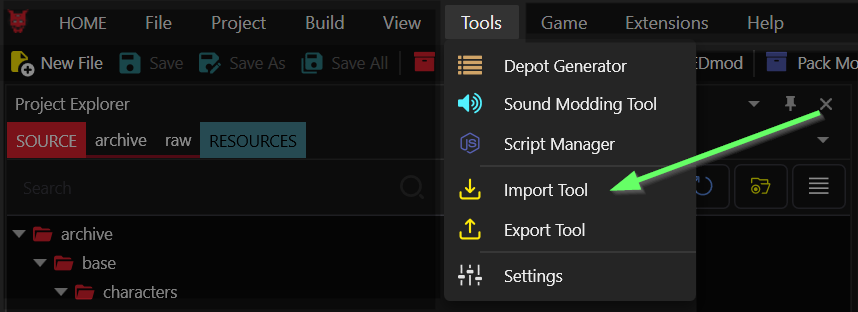
As of Wolvenkit 8.9.0, you can find both the import and the export tool in the menu "Tools":&#x20;

<figure><img src="https://4106170459-files.gitbook.io/~/files/v0/b/gitbook-x-prod.appspot.com/o/spaces%2F-MP_ozZVx2gRZUPXkd4r%2Fuploads%2F2yujH5Swe4hx23d6mMPw%2Fimport_export_tool_GUI.png?alt=media&#x26;token=9b6e9316-6ab6-47e7-a62f-e2010c8eeaff" alt=""><figcaption></figcaption></figure>

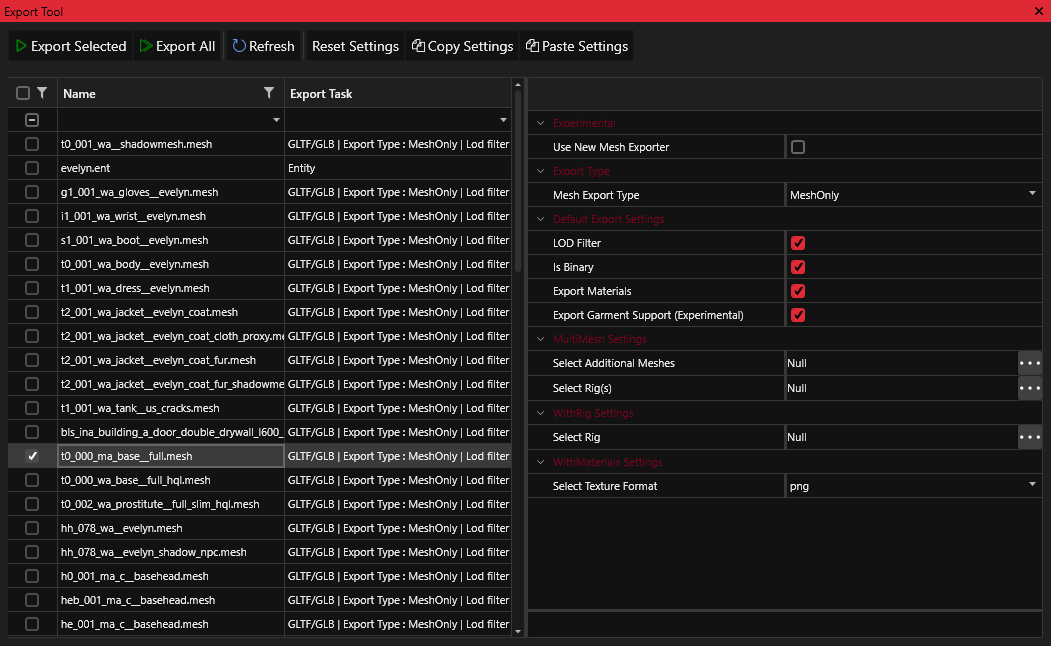
<figure><img src="https://4106170459-files.gitbook.io/~/files/v0/b/gitbook-x-prod.appspot.com/o/spaces%2F-MP_ozZVx2gRZUPXkd4r%2Fuploads%2FIMkyJCco3uSiKL8OrVjY%2Fupdated_export_tool.png?alt=media&#x26;token=cd4c9775-97fd-4a15-8f36-4d0df6501685" alt=""><figcaption></figcaption></figure>

### UI Preview

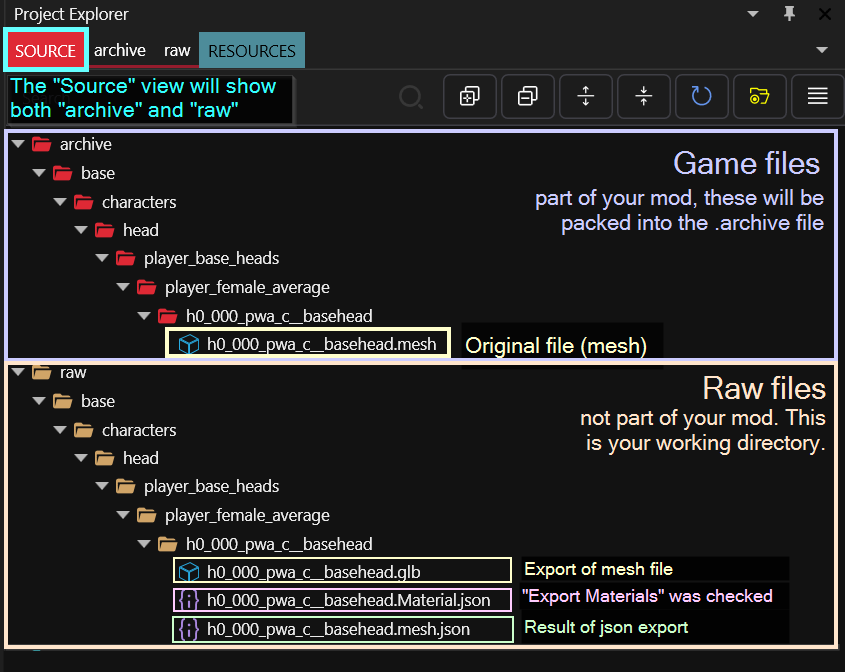
You can browse the file structure via Wolvenkit's **Project Explorer**. Here's how it looks:

<figure><img src="https://4106170459-files.gitbook.io/~/files/v0/b/gitbook-x-prod.appspot.com/o/spaces%2F-MP_ozZVx2gRZUPXkd4r%2Fuploads%2FLBcDILsVm6WkjmYprwyA%2Fimport_export_project_view_explained.png?alt=media&#x26;token=1f43d9e8-46d9-4d46-a59e-e6ab88e60907" alt=""><figcaption><p>Annotated example. For more information about the files, see below.</p></figcaption></figure>

## Import Tool

{% hint style="warning" %}
Importing will overwrite files in `archive` without a prompt. Do a backup from time to time!

If you mess up a file beyond repair, you can  restore it to default by selecting the "`replace with original`" option from the right-click menu.
{% endhint %}

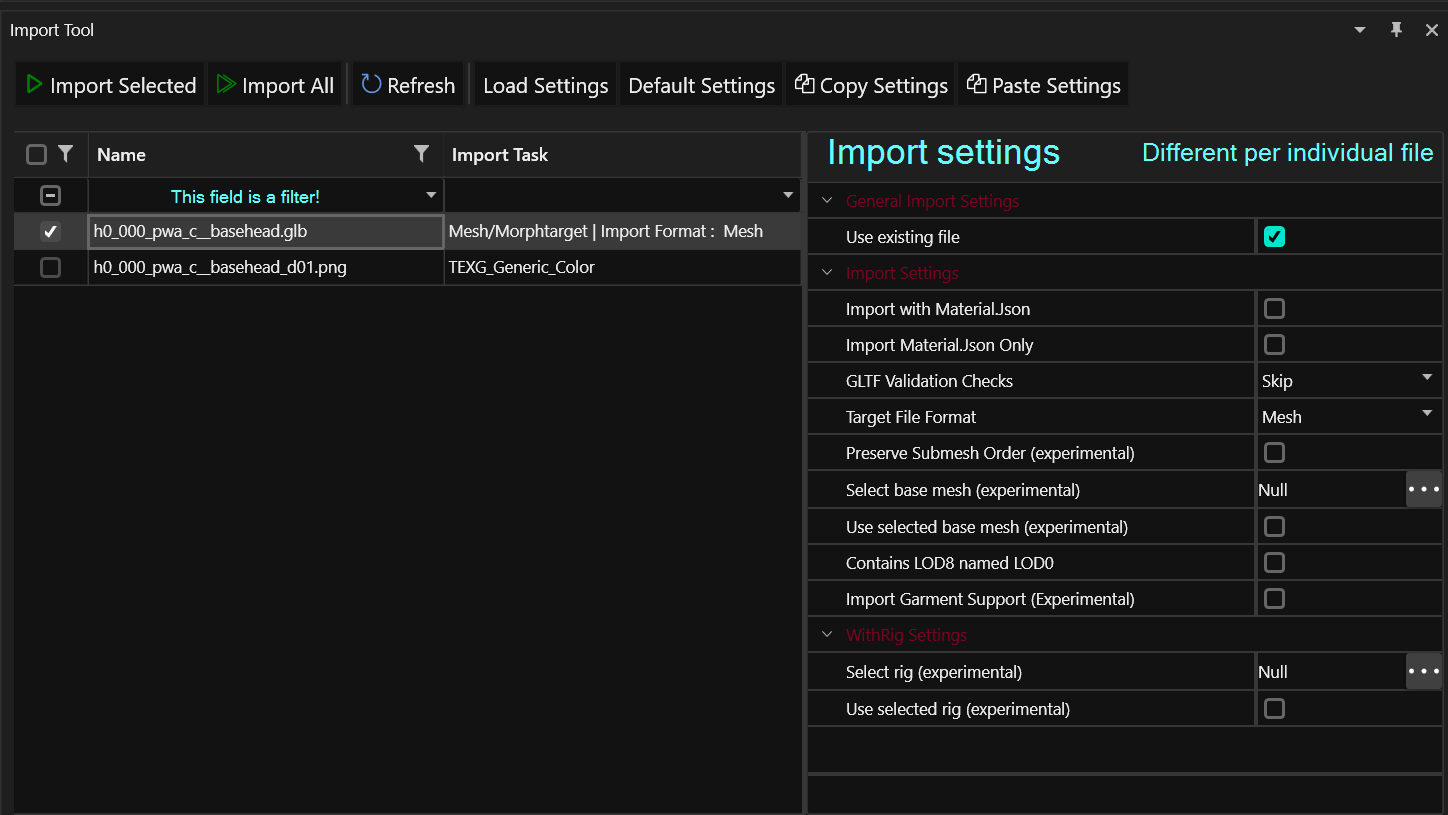
<figure><img src="https://4106170459-files.gitbook.io/~/files/v0/b/gitbook-x-prod.appspot.com/o/spaces%2F-MP_ozZVx2gRZUPXkd4r%2Fuploads%2Fo5rxfscvXTMMYyEY9YcO%2Fimport_tool.png?alt=media&#x26;token=e88845bb-c7c8-4e1b-b35e-eb6a03342f27" alt=""><figcaption><p>This is your import tool. For detailed documentation of the different export settings, check the corresponding <a href="broken-reference">subpage</a>.</p></figcaption></figure>

{% hint style="info" %}
For detailed documentation of the different import settings, check the [corresponding subpage](https://wiki.redmodding.org/wolvenkit/wolvenkit-app/tools/broken-reference).
{% endhint %}

<table><thead><tr><th width="225">UI element</th><th>Explanation</th></tr></thead><tbody><tr><td>Import Selected</td><td>Imports anything you checked in the left-hand list</td></tr><tr><td>Import All</td><td>Imports all files in your project.<br><br>⚠ This button will always export everything, <strong>regardless of your filter</strong>.</td></tr><tr><td>Refresh</td><td>Refreshes the file list on the left</td></tr><tr><td>Reset Settings</td><td>Restores the Import Settings to default</td></tr><tr><td>Copy Settings</td><td>Copies the Import Settings of your currently selected file (<code>h0_000_pwa_c__basehead.glb</code> in the screenshot above) so that you can paste them to other files.</td></tr><tr><td>Paste Settings</td><td><p>Pastes the Import Settings from the previous step to the currently active file. </p><p><em>This will not work if you copy/paste between incompatible file types.</em></p></td></tr></tbody></table>

### Export Tool

{% hint style="danger" %}
Exporting will overwrite already-existing files in `raw` without a prompt.
{% endhint %}

The **Export Tool** lets you export any files in your project's `archive` directory:

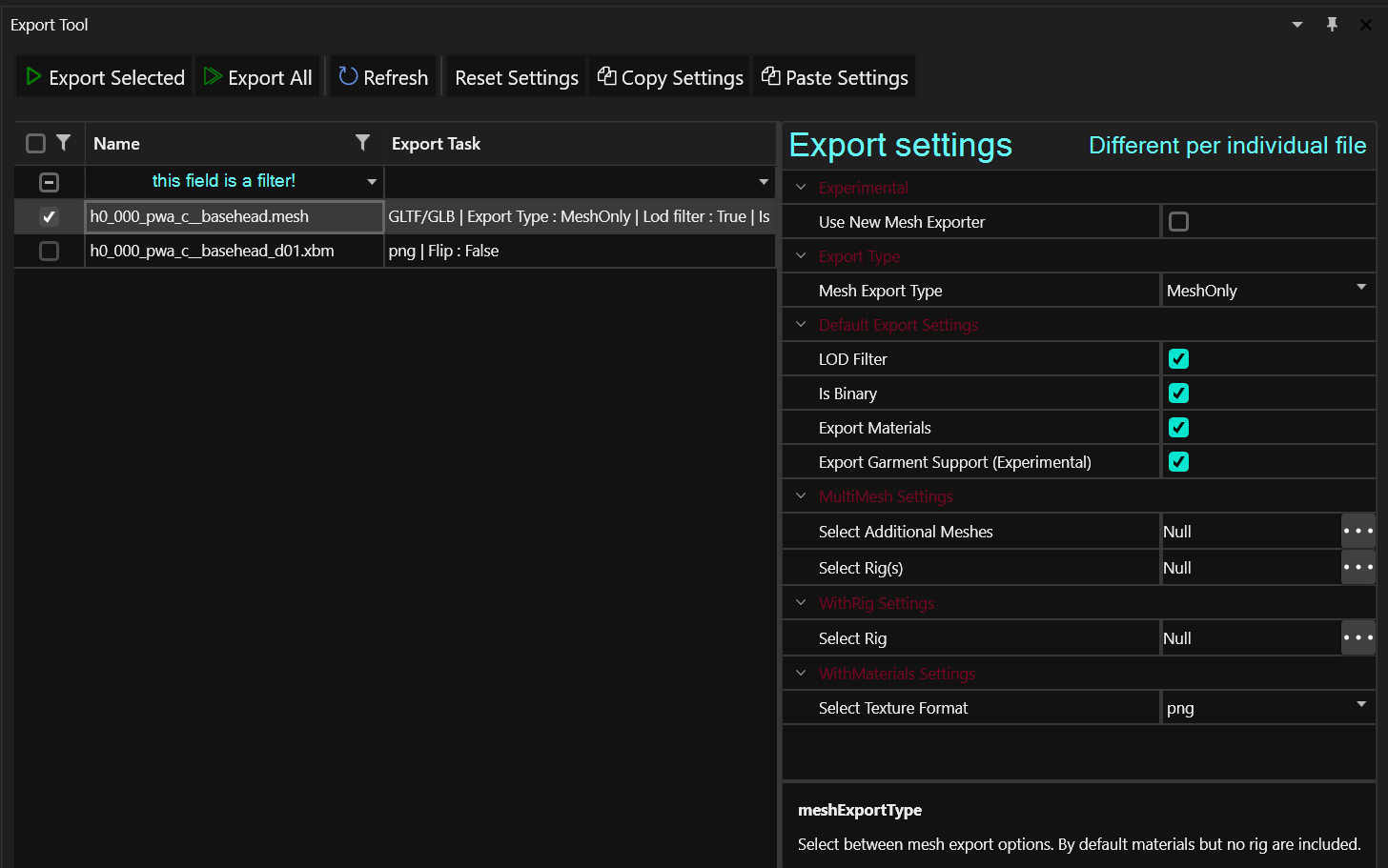
<figure><img src="https://4106170459-files.gitbook.io/~/files/v0/b/gitbook-x-prod.appspot.com/o/spaces%2F-MP_ozZVx2gRZUPXkd4r%2Fuploads%2FlE2WxO2HGRrYCI8aqS1r%2Fexport_tool.png?alt=media&#x26;token=ece840a6-bb45-4757-a04d-538032b346d7" alt=""><figcaption><p>This is your export tool. For detailed documentation of the different export settings, check the corresponding <a href="broken-reference">subpage</a>.</p></figcaption></figure>

{% hint style="info" %}
For detailed documentation of the different export settings, check the [corresponding subpage](https://wiki.redmodding.org/wolvenkit/wolvenkit-app/tools/broken-reference).
{% endhint %}

<table><thead><tr><th width="225">UI element</th><th>Explanation</th></tr></thead><tbody><tr><td>Export Selected</td><td>Exports anything you checked in the left-hand list</td></tr><tr><td>Export All</td><td>Exports all files in your project.<br><br>⚠ This button will always export everything, <strong>regardless of your filter</strong>.</td></tr><tr><td>Refresh</td><td>Refreshes the file list on the left</td></tr><tr><td>Reset Settings</td><td>Restores the Export Settings to default</td></tr><tr><td>Copy Settings</td><td>Copies the Export Settings of your currently selected file (<code>h0_000_pwa_c__basehead.mesh</code> in the screenshot above) so that you can paste them to other files.</td></tr><tr><td>Paste Settings</td><td><p>Pastes the Export Settings from the previous step to the currently active file. </p><p><em>This will not work if you copy/paste between incompatible file types.</em></p></td></tr></tbody></table>