> For the complete documentation index, see [llms.txt](https://wiki.redmodding.org/cyberpunk-2077-modding/llms.txt). Markdown versions of documentation pages are available by appending `.md` to page URLs; this page is available as [Markdown](https://wiki.redmodding.org/cyberpunk-2077-modding/modding-guides/vehicles/adding-moving-parts-to-your-vehicle/adding-wheels-tires-and-brake-calipers.md).
# Adding Wheels, Tires and Brake Calipers
Preparation in the .app file
All the base game cars in Cyberpunk are setup in the same way where they only use the left wheel and tire meshes. All cars have 4 wheels and 4 tires but we only need to export our car's ***front left*** and ***back left*** wheel and tire meshes from Blender, so 4 meshes in total, not 8.
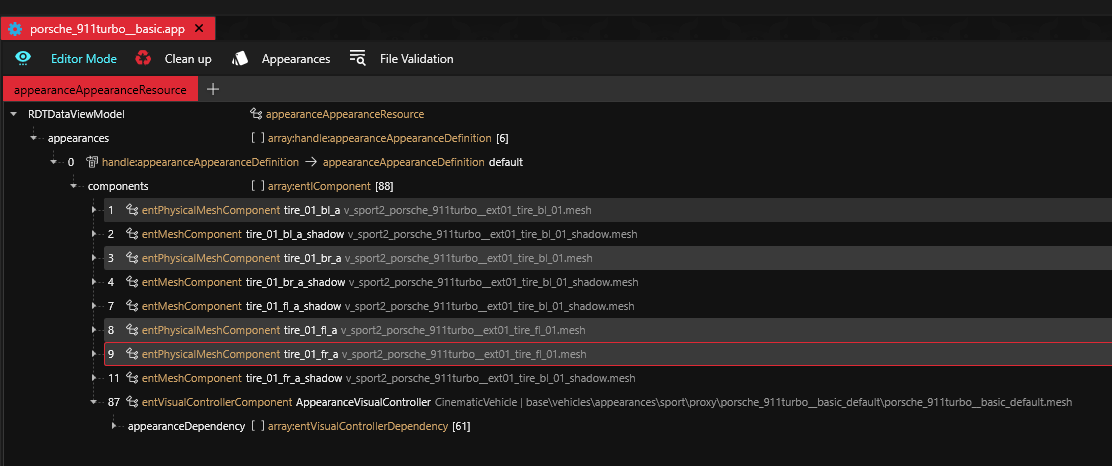
Then these 4 left side meshes are reused as they're simply mirrored along the y axis which is the axis of symmetry and we get their right side counterpart. This is what it looks like in the porsche 911 .app. The right and left side wheel and tire ***components*** use the same left side `mesh path`:
{% hint style="info" %}
Both front left and right wheels reference the "`v_sport2_porsche_911turbo__ext01_wheel_fl_01.mesh`" path
The back left and right wheels share the same "`v_sport2_porsche_911turbo__ext01_wheel_bl_01.mesh`" path and the same goes for the tire components
I filtered the components list like this by expanding the ***components*** and ***AppearanceVisualControlle***r lists and searching for "wheel" and "tire" on the search bar inside the .app on the top right
{% endhint %}
{% hint style="warning" %}
You will need to have these 8 `entPhysicalMeshComponents` for the tires and wheels along with their 8 `appearanceDependencies` inside your .app with your custom mesh paths just like we did in page 1 [Step 3](/cyberpunk-2077-modding/modding-guides/vehicles/adding-moving-parts-to-your-vehicle.md#finding-the-x-y-z-values)
{% endhint %}
Now, if we expand these components to see the bone in the .rig that they're parented to, we will see that the wheels are parented to the "wheel\_front\_left", "wheel\_back\_left", "wheel\_front\_right" and "wheel\_back\_right" bones respectively. These bones are listed in the vehicle slots component in the .ent:
The tire components are parented to the wheel components as we see below on the right panel:
If we open the deformation .rig file, in the `boneParentIndexes`, we see the parent bone of each bone:
{% hint style="success" %}
TL;DR, the wheel bones are all parented to each suspension bone as it's highlighted here. In short, all 8 tire and wheel components in the .app, are linked to each suspension bone in the deformation .rig file
{% endhint %}
***
Export position of tire and wheel meshes from Blender
Let's start a new Blender project and import our wheels and tires from our model. Then we will make a copy of this mesh and hide it just like we did in [Step 1](/cyberpunk-2077-modding/modding-guides/vehicles/adding-moving-parts-to-your-vehicle.md#step-1-importing-our-meshes) at the start of this guide for dynamic meshes:
We will only need the left tire and wheel mesh so I will delete the right ones and split the mesh into the front left and back left tire and wheel. In my case, all the wheels are in one mesh so I will:
* Select the wheels and tires mesh
* Go into edit mode with Tab and press 1 to go into Vertex mode and Alt + Z to entery X- Ray mode
* Manually make the selection, press X and delete:
Now I will split the remaining mesh into two, separating the front and back left tires/wheels by:
* Going into edit mode and selecting one of the two wheels/tires with the Lasso
* Press P and separate Selection
{% hint style="info" %}
Let's also make a copy of each of the two wheel/tire meshes in this original position and hide them for later
{% endhint %}
Then, I will select the front left tire/wheel mesh and move the selection to the cursor (origin) with:
*Edit mode-> mesh-> Snap-> Selection to Cursor (Keep Offset)*
Do the same with the back left tire/wheel:
{% hint style="success" %}
Now we will hide either the front or back left tire/wheel mesh and work on each one separately
Fortunately, the tires and wheels are the easiest meshes to work with since the position that we need to export them from in Blender, in order for them to move correctly in-game, is already known
In the export position, the x axis (red line) must pass through the center of each tire/wheel mesh and each mesh must not have any rotation around the Y and Z axes. It should be parallel to the YZ-plane/surface
{% endhint %}
{% hint style="danger" %}
Both very important, otherwise the tires/wheels won't rotate correctly as the car moves in the game
{% endhint %}
***
Aligning the X axis with the center of the mesh
Let's start by making sure the X axis passes through the center of the mesh
Click the red X axis on the top right in order to allow us to view through the X axis:
> Look closely at the origin which is the white and red checkered ring with the black crosshair at the center. We can see that the center of the tire/wheel mesh does not coincide with the cursor
>
> This is blatantly obvious when we zoom in. We need to lower the mesh and move it to the right by lowering the Y value using the shortcut 'G' and 'Y' to only move it in the Y axis in this example case
Here's what it looks like after the mesh is moved in the Z and Y axis in order to bring the cursor/origin to the center of the mesh. Constantly zooming in and out is necessary to gauge if it's correctly positioned:
{% hint style="danger" %}
Depending on how your mesh is built, there might be a vertex point that's almost or exactly at the center of the mesh to help you position it with ease
In my example mesh, the vertex point near the origin looks like it's at the center of the mesh but it's not, so I have to move it approximately where I think the center of this small vehicle brand logo circle is
{% endhint %}
***
Undoing any rotation around the Y and Z axes
Now that the mesh is positioned so that the X axis passes through its center, let's make sure that the mesh has no rotation around the Y and Z axes. To check, let's view through the Y axis and then through the Z axis to see if the mesh is parallel to the YZ plane (a plane that is formed by the Y and Z axes)
For my example mesh here, when viewing through the Y axis on the ***left picture*** in the comparison below, the tire/wheel is tilted and has a rotation in the Y axis so it's not parallel to the YZ plane (blue line).
This is even more clear on the ***right image*** where we are looking at the mesh from above. Due to the tilt, we can see the wheel which means the mesh is not perpendicular to the XY plane (represents the ground/road). If it were parallel to the YZ plane, the wheel would not be visible from this viewpoint:
1. Click on the green Y axis in the spherical UI icon on the top right in Blender to view through the Y axis
2. Then, while having your tire and wheel mesh selected, press 'R' and 'Y' to only rotate it in the Y axis until it's parallel to the YZ plane
3. Similarly, place the camera viewpoint through the Z blue axis and press 'R' and 'Z' to rotate around the Z axis until the Z rotation is undone
{% hint style="info" %}
On the right picture above, the tire/wheel is parallel to the blue line which means that my mesh is not rotated around the Z axis, so in this case, it's already set and there's no rotation to undo
{% endhint %}
Here's what my mesh looks like after undoing the Y rotation
The wheel is no longer visible as the entire mesh is perpendicular to the XY plane:
Now, my mesh has no Y or Z rotation and the X axis passes through its center
{% hint style="info" %}
Now, you will need to split the tire from the wheel and have them as separate meshes. This is necessary in order for the tire mesh to be able to be punctured in the game
You can use the metal\_base.remt material Instance for your tire mesh with a BaseColor texture and a Normal texture from your car model. As an alternative, you could have imported the front left and back tires of any base-game vehicle and resized them to fit your custom car's wheels. In that case you would also use the fl and bl tire .mesh files of that car which already have the materials setup in them
{% endhint %}
Checking the result
After making these changes, let's check how the wheel/tire mesh will rotate in-game as the tires, wheels are rolling along when the car is moving. Make sure your Transform Pivot Point is the cursor at the origin:
{% hint style="success" %}
Now for example, select the front left tire and wheel meshes and press 'R' and 'X' to rotate around the X axis with your mouse (make sure to only move your mouse AFTER pressing X).
Now move your mouse to see how the tire/wheel is rotating. If you have made a mistake in the 2 previous steps, then you will quickly realize something is wrong as you keep rotating it around the X axis. Press ESC to cancel the rotation as we only do this to check how the animation will play in the game. Readjust if needed
{% endhint %}
>
Export each front left and back left tire and wheel mesh from Blender and import all 4 into Wkit
***
## Changing the X,Y,Z boneTransforms values in the deformation and vehicle .rig files in Wolvenkit
Just like we did in [Step 3](/cyberpunk-2077-modding/modding-guides/vehicles/adding-moving-parts-to-your-vehicle.md#finding-the-x-y-z-values) on the first page of the guide, we will obtain the transform values we need to position the tire/wheel front and back meshes back into their original position that we made a copy of.
1. Select the entire wheel AND tire mesh in the original position
2. 'Tab' to enter edit mode, press 'A' to select everything and
3. 'N' to view the global X,Y,Z values on the panel in the top right
We will need to take the global X,Y,Z values of the mesh in the ***original position*** and subtract each global X, Y and Z value of the mesh in the ***export position*** respectively. You will need to do this twice, once for the front left and once for the back left tire/wheel meshes:
Now, open the deformation rig. of your custom car and enter the X,Y,Z values for the front left tire/wheel:
{% hint style="success" %}
Since the left wheel/tire meshes are mirrored along the Y axis to gives us their right counterpart, the values for the suspension\_front\_right bone will have the same Y and Z values as the suspension\_front\_left bone but the opposite X value. This is how all base game cars are setup. Notice the opposite X values here:
{% endhint %}
{% hint style="info" %}
X= -0,699999 for the *suspension\_front\_left* bone becomes X= 0,699999 for the *suspension front right* bone which makes sense since positive X values are towards the passenger's side on the right
Similarly, the suspension\_back\_right bone will have the same Y and Z values as the suspension\_back\_left bone and they will have opposite X values
{% endhint %}
Apart from the deformation .rig, we will also need to enter these same values for the suspension bones into the vehicle .rig file. This is found in your .ent -> components -> vehicle\_rig -> rig
Add this to your project, rename it and update the path in the .ent if you haven't already
Then copy and paste the same XYZ values for each suspension bone into the vehicle .rig:
> You can open your .ent file and go into entity preview to see if the tire/ wheels are positioned right
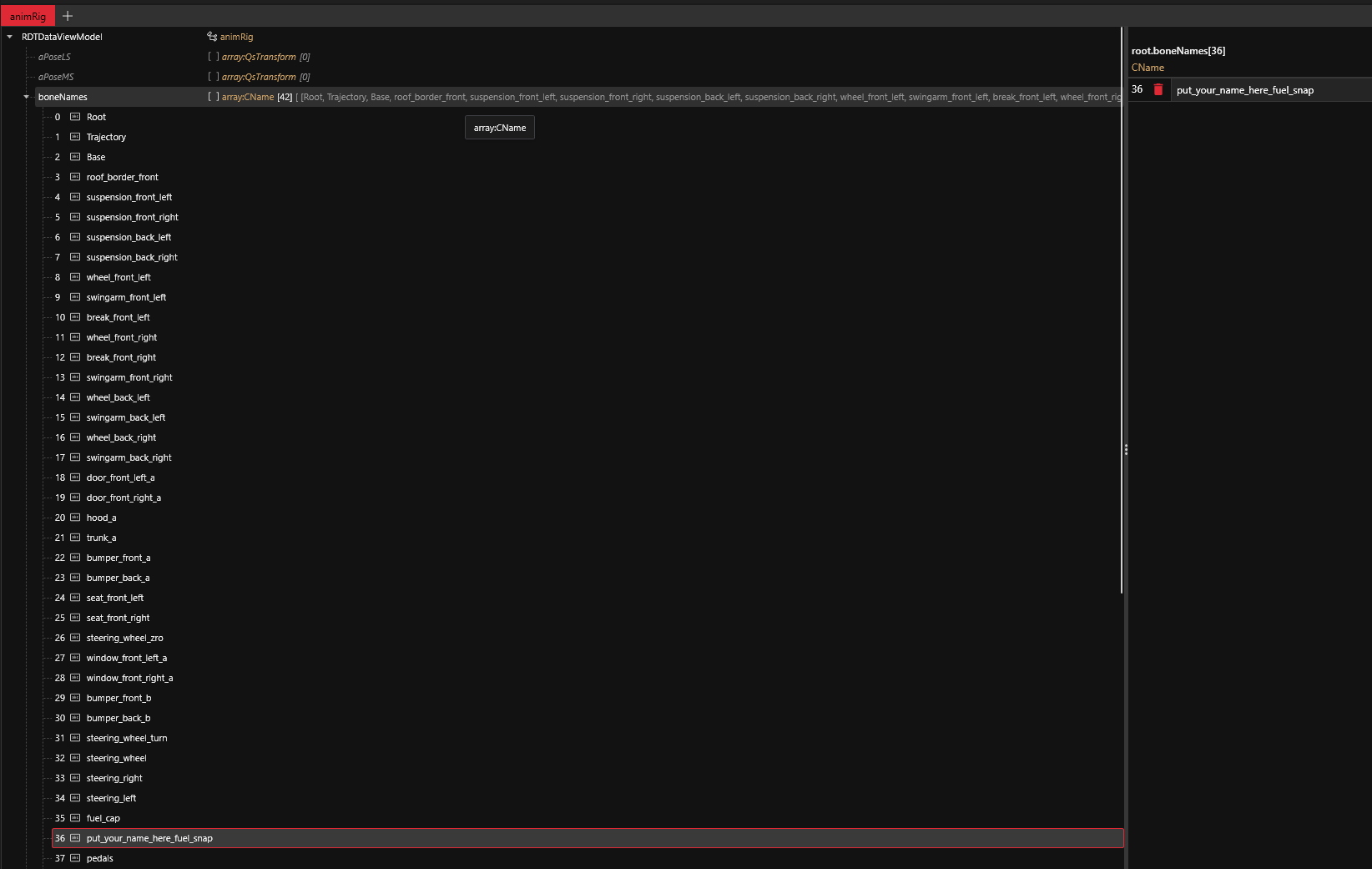
Lastly, rename either the "***fuel\_cap***" or "***fuel\_snap***" bones from the boneNames list in your deformation .rig file if you haven't already done so since it can cause issues with the base game car your mod car is mirroring which I have already mentioned in the 1st page of this guide on dynamic meshes:
***
Adding Brake Calipers
If you want to add brake calipers, they should be separate meshes. If you export the wheel mesh with the caliper as a submesh in it, then it will also rotate along with the wheel which is not what it should be doing, realistically speaking.
Therefore, you will need 4 separate meshes, one for each caliper. Add `entPhysicalMeshComponents` to your .app file for each caliper along with their counterpart in the `AppearanceVisualController`.
Each caliper component will need to be parented to one of the "brake\_" bones found inside your .ent -> vehicle\_slots list. If you don't have these bones in your .ent, take them from another car's .ent.
{% hint style="success" %}
This will make it so that they move with the wheel and tire as it rotates when turning or changes height when the car goes over a bump, without clipping!
{% endhint %}
{% hint style="danger" %}
If you are using a car like the caliburn for your .ent, .rig and so on, you will need to open the porsche .ent file (you will find it in the Asset browser in vehicles -> sport), open the vehicle\_slots component, copy the four "brake\_" vehicle slots and paste them in your custom .ent vehicle\_slots list, otherwise the calipers wont appear
{% endhint %}
Let's start with the front left caliper. In Blender, you will:
1. Separate the caliper mesh from the wheel mesh by going into edit mode, pressing 'L' to select linked and then 'P' to separate the selectionThen
2. Make a copy of the front left caliper and press 'Ctrl+M' and then 'X' in order to flip it horizontally and export it as the front\_right caliper
3. Do the same process for the back\_left and right calipers
Open your .ent, go into entity preview, make sure the proxy mesh is hidden by searching for it and unticking it on the right panel, then zoom in and make sure each of the 4 calipers are seated correctly on each of the 4 wheels. If one is not, then you will need to open your .app file and move the caliper mesh by entering values in the ***localTransform*** field for your caliper component. Then, recheck in entity preview.
You might need to change the X,Y and/or Z value to position each caliper correctly
{% hint style="warning" %}
If you want to have the wheel, tire and caliper meshes, all slanted/at an angle and NOT perpendicular to the ground (this is an appearance common for modified, widebody cars like the Toyota GT 86), then you should still export all of those meshes without any rotation in the Y and Z axes, for them to rotate correctly in-game
Instead, you will have to rotate each mesh by entering values in the Orientation field inside the localTransform of each entPhysicalMeshComponent inside your .app for each wheel, tire and brake caliper component. The i,j,k values in Orientation correspond to the x,y and z values respectively
{% endhint %}
***
---
# Agent Instructions
This documentation is published with GitBook. GitBook is the documentation platform designed so that both humans and AI agents can read, navigate, and reason over technical content effectively. Learn more at gitbook.com.
## Querying This Documentation
If you need additional information that is not directly available in this page, you can query the documentation dynamically by asking a question.
Perform an HTTP GET request on the current page URL with the `ask` query parameter, and the optional `goal` query parameter:
```
GET https://wiki.redmodding.org/cyberpunk-2077-modding/modding-guides/vehicles/adding-moving-parts-to-your-vehicle/adding-wheels-tires-and-brake-calipers.md?ask=&goal=
```
`ask` is the immediate question: it should be specific, self-contained, and written in natural language.
`goal` is optional and describes the broader end goal you are ultimately trying to accomplish on behalf of the user. GitBook uses it to tailor the answer towards what is most useful for that goal.
The response will contain a direct answer to the question and relevant excerpts and sources from the documentation.
Use this mechanism when the answer is not explicitly present in the current page, you need clarification or additional context, or you want to retrieve related documentation sections.