> For the complete documentation index, see [llms.txt](https://wiki.redmodding.org/cyberpunk-2077-modding/llms.txt). Markdown versions of documentation pages are available by appending `.md` to page URLs; this page is available as [Markdown](https://wiki.redmodding.org/cyberpunk-2077-modding/modding-guides/vehicles/fluid-animations-for-vehicles.md).
# Fluid Animations for Vehicles
## Intro
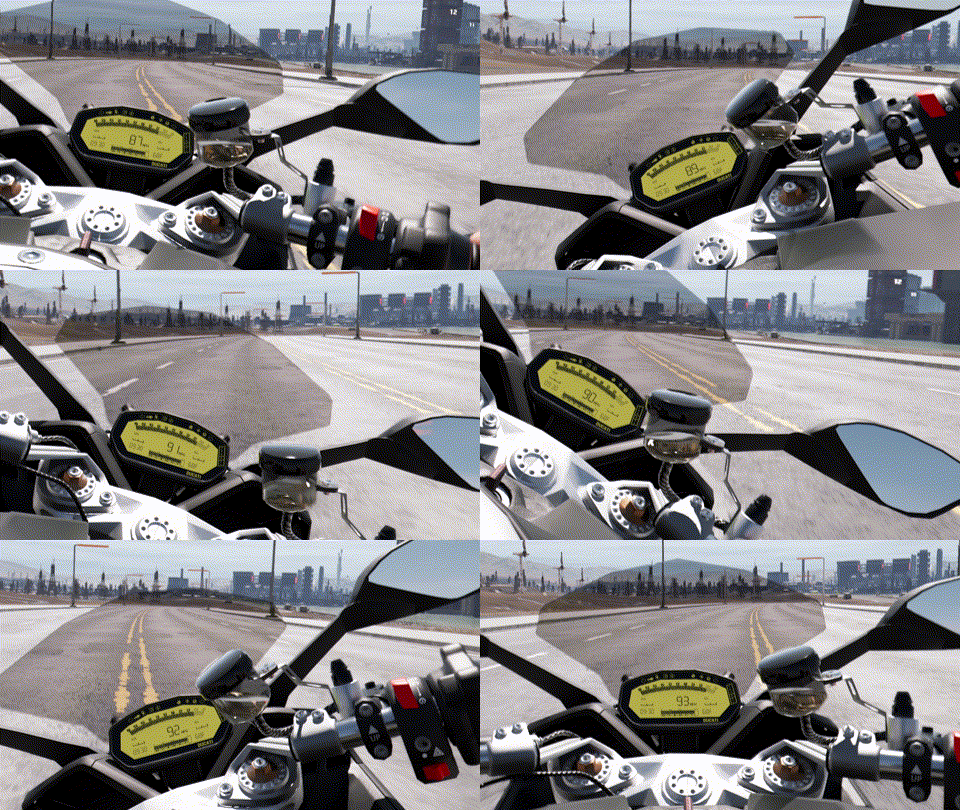
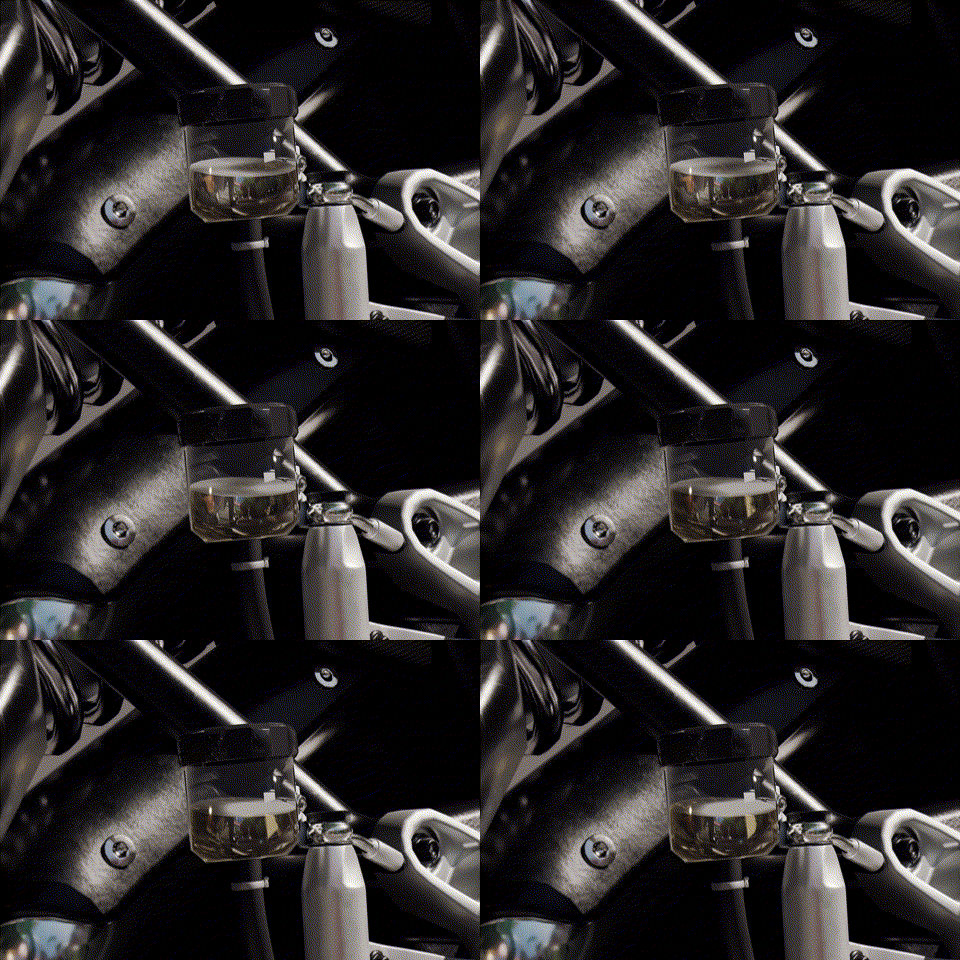
To add further realism to vehicle mods, you can animate fluids such as the ones used for the wipers and the brakes. Cyberpunk has a fluid shader mostly used for alcoholic beverages in the game, which is the shader that will be used here. The fluid will feature waves and its surface remains level while the vehicle tilts - for example when turning on a bike:
## Theory
The fluid shader requires two meshes to work properly: A mesh for the fluid itself, and a container for the fluid. The fluid gets drawn against the closest geometry, so the container should be slightly bigger than the mesh for the fluid. The fluid shader also uses two values to set the lower and upper boundaries of the fluid mesh which are relative to world origin (position `x: 0, y: 0, z: 0` in Blender). This is important for vehicle mods because the values aren't relative to the mesh itself and as such won't change along with height changes of the vehicle. This means that the entire fluid container needs to be placed at world origin and moved to its proper position on the vehicle via the `localTransform` array in the `.app` file. This is basically the same as placing the bumpers or doors on a car, but instead of the `.rig` file, the values are copied from Blender into the `.app` file. Another value used by the fluid shader is for the fill height of the fluid. This seems to scale down the fluid mesh on the Z axis. If the fluid container mesh and the fluid mesh itself are both wider at the top, the fluid mesh will clip outside of the container when the fill height is low. Using meshes that are perfectly vertical makes things easier.
## Preparation in WolvenKit
* Duplicate a `.mesh` file from your project. If needed, choose a `.mesh` file which has the required bones for its position on the body. If necessary, remove the `meshMeshParamPhysics` from the `parameters` array in the `.mesh` file to prevent issues with collision.
* [Add a new material](https://wiki.redmodding.org/cyberpunk-2077-modding/modding-guides/items-equipment/adding-new-items/archive-xl-item-structure-explained#mesh-making-changes) to the `.mesh` file:
* Open the following mesh: `base\environment\decoration\food\drinks\drink_bottle\drink_bottle_h_tequila.mesh`.
* Copy `drink_bottle_03_interior_fluid_golden` into the `localMaterialBuffer` of your `.mesh` file.
* We'll get back to the shader itself later, this is just the basic setup.
* Add a new mesh `component` to the `.app` file of your vehicle by duplicating an existing one.
* If needed, reset necessary values such as the `meshAppearance`, `chunkMask`, and the `localTransform` array. Adjust the settings for the shadows as well and generate a new `CRUID`.
* In this case, we'll be adding animated fluid to the brake fluid container on the body of a motorbike. This means the container is attached to the body. As such, the `bindName` of the `parentTransform` of the `component` needs to be set to `body_a_01` as that is the name of the `component` of the body.
* Copy the relative path to your `.mesh` file into the `mesh DepotPath` of your `component`.
* [Export](https://wiki.redmodding.org/wolvenkit/wolvenkit-app/tools/tools-import-export) the `.mesh` file to `.glb`.
## Creating the meshes in Blender
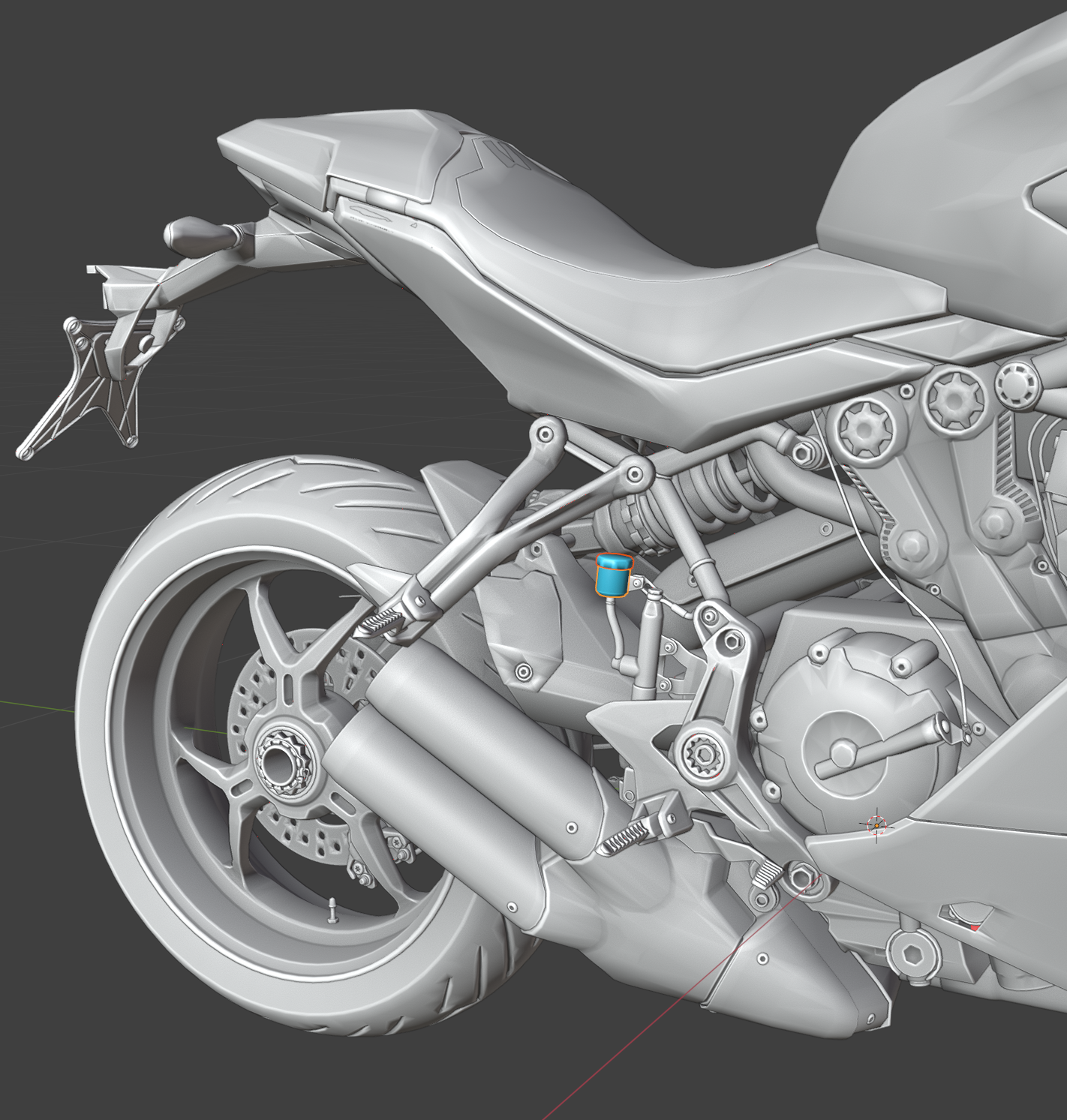
* Since the fluid container needs to be placed at world origin, start by separating the fluid container on your vehicle.
* Then, still in Edit Mode, select the bottom of the container, hit `Shift + S` on your keyboard and choose "Cursor to Selected".
* Switch to Object Mode, right click your object, and navigate to "Set Origin > Origin to 3D Cursor".
* Open Blender's Sidebar by hitting `N` on your keyboard and take note of the "Location:" within the "Transform" field of the "Items" panel. It tells you the exact placement of the container relative to world origin.
* In WolvenKit, copy-paste the X, Y, and Z values into the `Position`-array of the `localTransform` within the `mesh component` for your container inside of your `.app` file.
| Blender | WolvenKit |
| ------------------------------------------------------------------------------------------------------------------------------------------------------------------------------------------------------------------------------- | ------------------------------------------------------------------------------------------------------------------------------------------------------------------------------------------------------------------------------- |
|  |  |
* Then, back in Blender, hover your cursor above the "Location:" field and hit `Backspace` on your keyboard. This will move the container to world origin.
* Still in Object Mode, rotate your container to align it vertically.
* Set the Rotation Mode to Quaternion if it isn't already. Blender uses X, Y, Z, W while WolvenKit uses i, j, k, r. It translates as follows:
* W → r
* X → i
* Y → j
* Z → k
* Copy the X, Y, Z, and W values from Blender into the `Orientation`-array of the `LocalTransform` of the container in WolvenKit by following the translation of each axis as described above.
* Since we've rotated the container into the opposite direction to straighten it, the `Orientation` needs to be reversed. In our case, the W / r value needs to be negative instead of positive so that it sits at an angle on the bike.
| Blender | WolvenKit |
| ------------------------------------------------------------------------------------------------------------------------------------------------------------------------------------------------------------------------------- | ------------------------------------------------------------------------------------------------------------------------------------------------------------------------------------------------------------------------------- |
|  |  |
* Back in Blender, apply the transform by hitting `Ctrl + A` on your keyboard and selecting "All Transforms".
* Duplicate your container and shrink it slightly. One way to achive this is by using a Shrinkwrap Modifier. This will be the mesh used for the fluid.
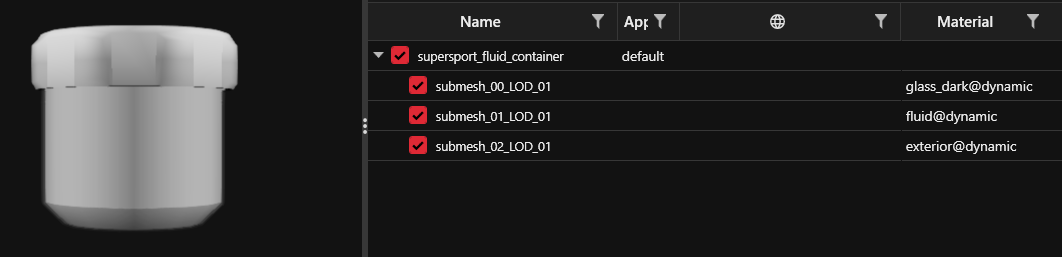
* In my case, i also separated the cap of the fluid container, so i ended up with three submeshes to assign three differnt shaders: the container (glass), the fluid, and the cap (plastic, MultilayerSetup).
* Export the entire mesh with all of its submeshes and overwrite the `.glb` file we've created in the Preparation section above.
* [Import](https://wiki.redmodding.org/wolvenkit/wolvenkit-app/tools/tools-import-export#import-tool) it into your `.mesh` file.
## Fluid Boundaries
| Blender | WolvenKit |
| ------------------------------------------------------------------------------------------------------------------------------------------------------------------------------------------------------------------------------- | ------------------------------------------------------------------------------------------------------------------------------------------------------------------------------------------------------------------------------- |
|  |  |
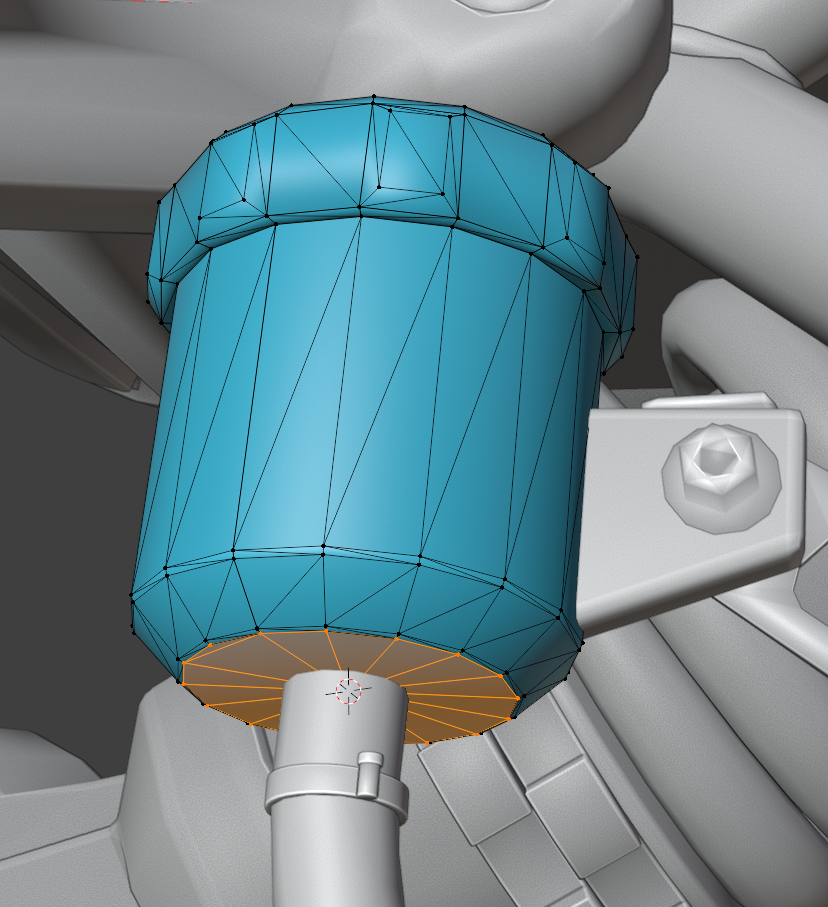
* In Blender, select your fluid mesh in Object Mode, switch to Edit Mode and select the lowest vertical vertices of your fluid mesh.
* Copy the Z value from the Transform panel.
* Inside your fluid `.mesh`, navigate to the fluid material we've copied into the `localMaterialBuffer` earlier.
* There, you should see a `CKeyValuePair` named `FluidBoundingBoxMin` of the type `Vector4`.
* Open the `Value` dropdown and paste the Z value we've copied from Blender into the text field that starts with Z.
| Blender | WolvenKit |
| ------------------------------------------------------------------------------------------------------------------------------------------------------------------------------------------------------------------------------- | ------------------------------------------------------------------------------------------------------------------------------------------------------------------------------------------------------------------------------- |
|  |  |
* Back in Blender, select the topmost vertices of your fluid mesh.
* Copy the Z value from the Transform panel.
* The process here is basically the same as before. Paste the Z value into the Z text field of the `FluidBoundingBoxMax`.
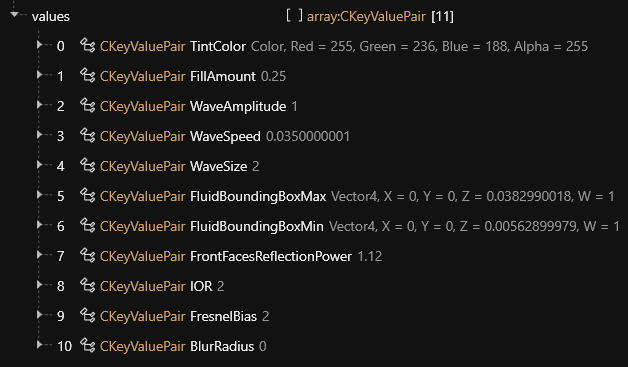
* All the other values related to the fluid shader can be adjusted to taste. The above steps are required to get the basic effect to function correctly.
* So, Draw The Rest Of The Owl and you're done!
Settings for the above fluid:
---
# Agent Instructions
This documentation is published with GitBook. GitBook is the documentation platform designed so that both humans and AI agents can read, navigate, and reason over technical content effectively. Learn more at gitbook.com.
## Querying This Documentation
If you need additional information that is not directly available in this page, you can query the documentation by asking a question.
Perform an HTTP GET request on the following URL with the `ask` and `goal` query parameters:
```
GET https://wiki.redmodding.org/cyberpunk-2077-modding/modding-guides/vehicles/fluid-animations-for-vehicles.md?ask=&goal=
```
`ask` is the immediate question: it should be specific, self-contained, and written in natural language.
`goal` is what the user is ultimately trying to achieve, the reason they need the answer. Sharing it helps GitBook give you a better, more relevant answer. A goal is most helpful when it describes the outcome the user wants rather than restating the question. For example, with `ask=how do I create an API token`, a goal like `automate deployments from our CI pipeline` lets GitBook tailor the answer to that use case.
The response will contain a direct answer to the question and relevant excerpts and sources from the documentation.
Use this mechanism when the answer is not explicitly present in the current page, you need clarification or additional context, or you want to retrieve related documentation sections.