> For the complete documentation index, see [llms.txt](https://wiki.redmodding.org/cyberpunk-2077-modding/llms.txt). Markdown versions of documentation pages are available by appending `.md` to page URLs; this page is available as [Markdown](https://wiki.redmodding.org/cyberpunk-2077-modding/for-mod-creators-theory/files-and-what-they-do/file-formats/videos-.bk2.md).
# Videos: .bk2
Editing and Replacing videos in CyberPunk 2077 with RAD Video Tools
This wiki page is about the .bk2 file format used in the game, and how to edit them.
## TL;DR
The .bk2 file format is used in many games including Cyberpunk 2077. It stands for [Bink 2 By Rad Tools ](https://www.radgametools.com/bnkmain.htm)and needs to be used to extract and recompress the video that you want to replace.
Converting to back to .bk2 requires a [byte offset](#byte-offset-requirement) for the video to appear in the game.
## Prerequisites
* WolvenKit (obviously)
* RAD Video Tools (available [here](https://www.radgametools.com/bnkdown.htm))
* Video Editor of Choice
## Selecting A Video File
[Searching in the asset browser](https://wiki.redmodding.org/wolvenkit/wolvenkit-app/usage/wolvenkit-search-finding-files) for .bk2 files will get you every video in the game. For this tutorial we will be using the boxing video (`q001_boxinggame.bk2`)
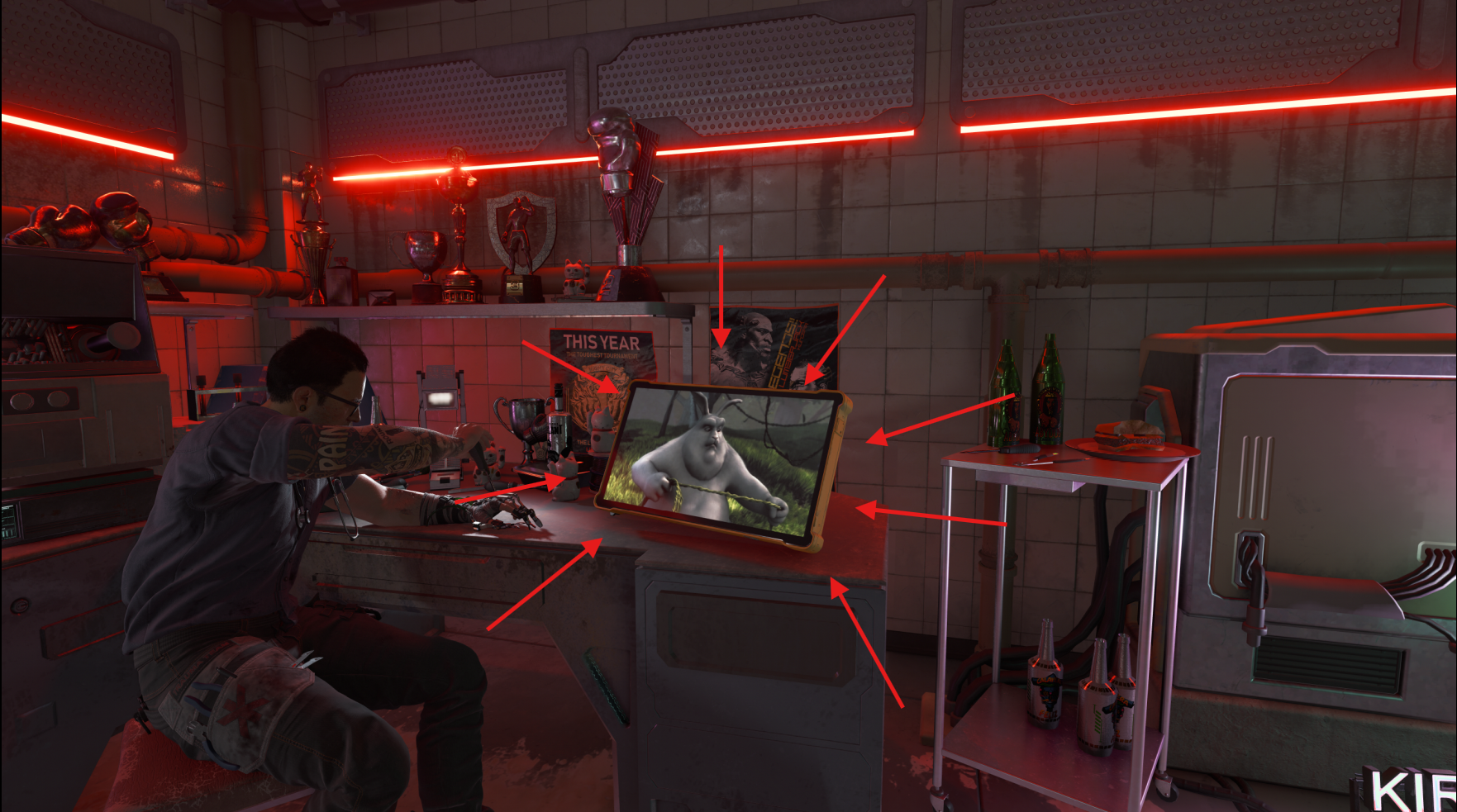
Visit Viktor's RipperDoc, the boxing video consistently plays on his screen for easy testing.
[Add](https://wiki.redmodding.org/wolvenkit/wolvenkit-app/editor/asset-browser#adding-files-to-projects) `q001_boxinggame.bk2` to your project
### Locating Video File on Your Computer
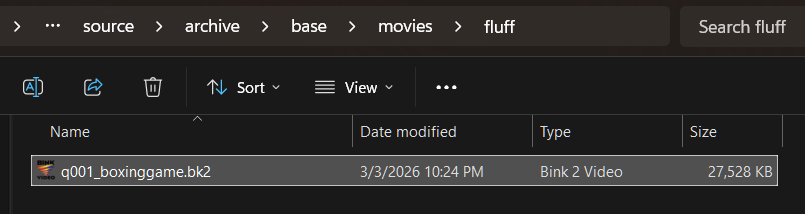
Click: Open In Windows Explorer
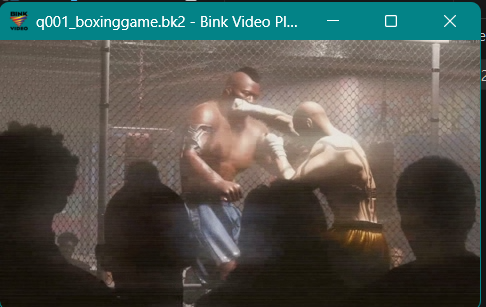
### Give it a Play
Converting to MP4 file format
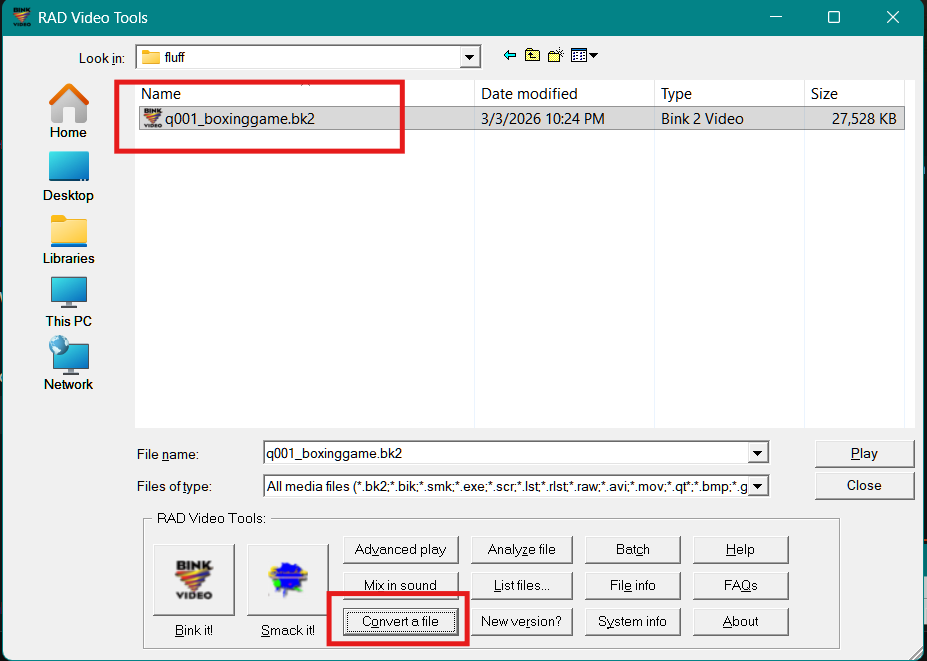
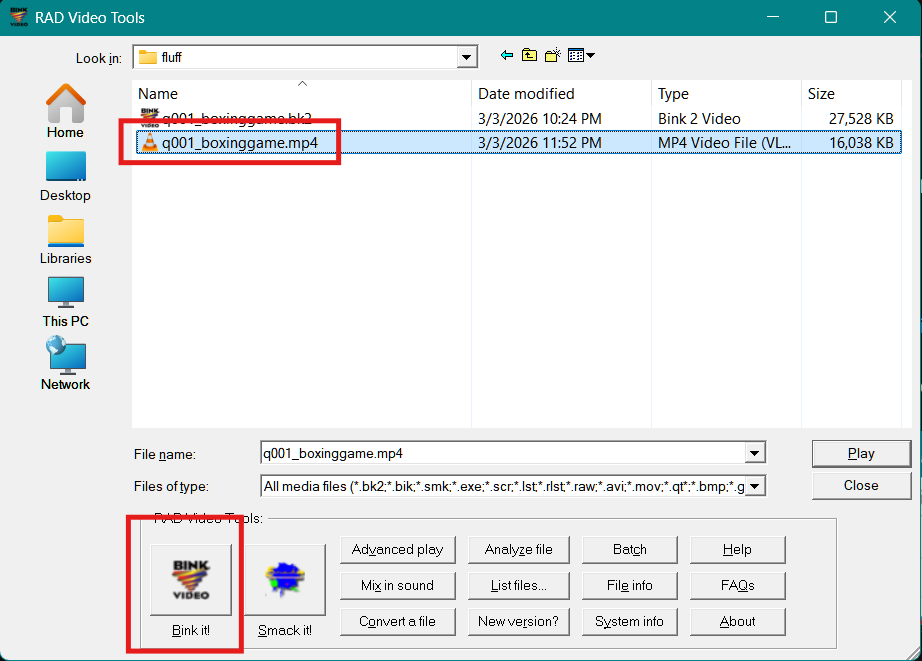
1. Open RAD Video Editor and browse to: `\source\archive\base\movies\fluff`
2. Select File
3. Convert
**Note**: you can batch convert files in both directions by selecting multiple files.
### Output Options
1. Convert
2. Defaults to MP4, keep it.
### Video Specifications:
**Length:** Should match **the converted .mp4**
**Export:** MP4
**Size:** 480p
**FPS:** 15fps is the game speed, 30fps is possible, but not recommended.
**You must export to Bink 2.**
## Byte Offset Requirement
For reasons unknown, CyberPunk requires the **4th byte** of your .bk2 file to to be changed to: `6A`
Once your bk2 file has been created, you will need to edit the file with a hex editor.
[HxD](https://mh-nexus.de/en/hxd/) is a good windows solution that is free.

Change the 4th byte to 6A and save to: `source\archive\base\movies\fluff`
### [Install Your Mod](https://wiki.redmodding.org/wolvenkit/wolvenkit-app/menu/toolbar#install-mod)
Since the working directory is Archive, there is no need to import.
### Resources:
[YouTube Video](https://www.youtube.com/watch?v=FUtSw5VsNzI) for more on RAD Tools.
[Discord](https://discord.gg/redmodding) community.
### Python Script: Automate byte offset all .bk2 files
This will automatically change the byte offset in all your .bk2 files at once in the working directory and subdirs.
{% code expandable="true" %}
```python
import os
import glob
def modify_fourth_byte(file_path):
"""
Opens a file in read/write binary mode and overwrites
the 4th byte (index 3) with 0x6A.
"""
try:
# Print the filename as processing begins
print(f"Working on: '{file_path}'...", end=" ", flush=True)
# Check file size before opening
file_size = os.path.getsize(file_path)
if file_size < 4:
print(f"\nSkipping: File is only {file_size} bytes (needs at least 4).")
return
with open(file_path, "r+b") as f:
# Navigate to 4th byte (index 3) and overwrite
f.seek(3)
f.write(bytes([0x6A]))
print("Done (4th byte set to 0x6A).")
except PermissionError:
print(f"\nError: Permission denied for '{file_path}'.")
except Exception as e:
print(f"\nAn unexpected error occurred with '{file_path}': {e}")
def main():
# Use recursive glob pattern to find files in all subdirectories
# '**/*.bk2' tells glob to look in current and all sub-folders
bk2_files = glob.glob("**/*.bk2", recursive=True)
if not bk2_files:
print("No .bk2 files found in the current directory or subdirectories.")
return
print(f"Found {len(bk2_files)} file(s) across all directories. Starting processing...")
for file_path in bk2_files:
modify_fourth_byte(file_path)
print("-" * 30)
print("Batch processing complete.")
if __name__ == "__main__":
main()
```
{% endcode %}
**Authors note**: Thank you to `Dark Fortune Teller on` [Discord](https://discord.gg/redmodding) for doing the hard work finding about the Byte offset
---
# Agent Instructions
This documentation is published with GitBook. GitBook is the documentation platform designed so that both humans and AI agents can read, navigate, and reason over technical content effectively. Learn more at gitbook.com.
## Querying This Documentation
If you need additional information that is not directly available in this page, you can query the documentation dynamically by asking a question.
Perform an HTTP GET request on the current page URL with the `ask` query parameter, and the optional `goal` query parameter:
```
GET https://wiki.redmodding.org/cyberpunk-2077-modding/for-mod-creators-theory/files-and-what-they-do/file-formats/videos-.bk2.md?ask=&goal=
```
`ask` is the immediate question: it should be specific, self-contained, and written in natural language.
`goal` is optional and describes the broader end goal you are ultimately trying to accomplish on behalf of the user. GitBook uses it to tailor the answer towards what is most useful for that goal.
The response will contain a direct answer to the question and relevant excerpts and sources from the documentation.
Use this mechanism when the answer is not explicitly present in the current page, you need clarification or additional context, or you want to retrieve related documentation sections.