> For the complete documentation index, see [llms.txt](https://wiki.redmodding.org/cyberpunk-2077-modding/llms.txt). Markdown versions of documentation pages are available by appending `.md` to page URLs; this page is available as [Markdown](https://wiki.redmodding.org/cyberpunk-2077-modding/modding-guides/everything-else/effects-modding/creating-custom-fx.md).
# Creating Custom FX
## Summary
**Published**: Mar 04 2025 by [beckylou\_1](mailto:undefined)\
**Last documented edit**: Mar 04 2025 by [beckylou\_1](mailto:undefined)
This guide will teach you the basics of how to Create a new Custom FX based on existing assets in the game. For example blackwall visuals.
## Red Hot Tools
The first thing you'll need is [Cyber Engine Tweaks ](https://wiki.redmodding.org/cyber-engine-tweaks/)and [RedHotTools](/cyberpunk-2077-modding/for-mod-creators-theory/modding-tools/redhottools.md) to be able to inspect objects in the world, to see what effects spawners they have on them and what effects are available to be played.
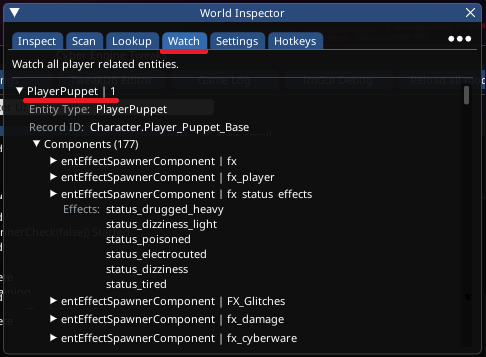
In the World Inspector under the Watch tab, you'll find PlayerPuppet, which is V. This will have a Components section with hundreds of things attached to V. The ones we're interested in are entEffectSpawnerComonent. These each contain a list of fx effects that you can play straight away.
World Inspector / Player Puppet / Status Effects
You can find the Effects list of NPCs as well; walk up to an NPC. Look at it open up the RedHotTools window, go to Inspect and if the NPC is dead center of the screen it will have a section of the inspection window for the NPC in front of you.\
It should be noted that depending on the NPC, they have different sets of EffectSpawnerComponents, children for example do not have fx\_status\_effects; and so any of the effects contained in that list will not be available to be used on the kids.
## Testing an Effect
Lets say that you were looking through the FX\_Glitches list and found afterimage\_glitch and wanted to see what it looks like. The simplest way to do this is to edit an existing effect. For simplicity we'll take the burning status effect that gets applied when you walk into a fire or get hit by a fire grenade.
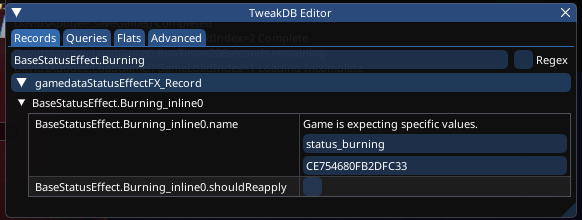
To begin with Open the TweakDB Editor and type BaseStatusEffect.Burning into the Search bar; then scroll down until you find gamedataStatusEffectFX\_Record, click on it to open it up and then inspect those records until you find one with "status\_burning" as the name.
Once you have found this, select status\_burning and replace it with afterimage\_glitch and press \[Enter]. You'll know it has worked because the hex number below the text will change.
Now take out your flame grenade and throw it in a place where you'll be able to walk over it and set yourself on fire.
Congratulations. You've successfully changed an effect and now you can't see. Brilliant right? But don't worry it only lasts a few seconds!
## Creating an Effect
Lets say that you've been through all the lists of effects, tried them all and you can't find the one that you want. Well there's good news and bad news. The good news is not every effect is registered as a playable effect on the character. The bad news is that you need to hunt through the 100s of .effect files to find the one you're looking for. However [FX player](https://www.nexusmods.com/cyberpunk2077/mods/8194) has you covered on that point.
Say you've been through the FX player list and found blackwall\_force\_screen.effect and wanted to test that.
Create a new folder inside Cyberpunk 2077\bin\x64\plugins\cyber\_engine\_tweaks\mods called example, create a new file called init.lua and drop the following code into that file.
```
local CNameNew = function(theString)
local output = CName.new(theString)
if output.value ~= theString then
CName.add(theString)
output = CName.new(theString)
end
return output
end
registerForEvent('onInit', function()
local NewFXName = 'my_custom_blackwall_onscreen'
local EffectPath = 'ep1\\fx\\quest\\q306\\other\\blackwall_force\\blackwall_force_screen.effect'
local newEffect = entEffectDesc.new()
newEffect.effectName = CNameNew(NewFXName)
newEffect.effect = EffectPath
Observe('PlayerPuppet', 'OnGameAttached', function(puppet)
local fx_status_effects = puppet:FindComponentByName('fx_status_effects')
local fx_effectDescs = fx_status_effects.effectDescs
table.insert(fx_effectDescs,newEffect)
fx_status_effects.effectDescs = fx_effectDescs
end)
end)
```
Fire up the game, investigate your playerpuppet fx\_status\_effects list and you'll find a new record in there for your new effects
Open up TweakDB Editor, find the StatusEffectFX\_Record from earlier and change it to my\_custom\_blackwall\_onscreen and set yourself on fire. Instead of the burning screen effects you'll find that your screen gets filled with flashy blackwall things.
---
# Agent Instructions
This documentation is published with GitBook. GitBook is the documentation platform designed so that both humans and AI agents can read, navigate, and reason over technical content effectively. Learn more at gitbook.com.
## Querying This Documentation
If you need additional information that is not directly available in this page, you can query the documentation dynamically by asking a question.
Perform an HTTP GET request on the current page URL with the `ask` query parameter, and the optional `goal` query parameter:
```
GET https://wiki.redmodding.org/cyberpunk-2077-modding/modding-guides/everything-else/effects-modding/creating-custom-fx.md?ask=&goal=
```
`ask` is the immediate question: it should be specific, self-contained, and written in natural language.
`goal` is optional and describes the broader end goal you are ultimately trying to accomplish on behalf of the user. GitBook uses it to tailor the answer towards what is most useful for that goal.
The response will contain a direct answer to the question and relevant excerpts and sources from the documentation.
Use this mechanism when the answer is not explicitly present in the current page, you need clarification or additional context, or you want to retrieve related documentation sections.