> For the complete documentation index, see [llms.txt](https://wiki.redmodding.org/cyberpunk-2077-modding/llms.txt). Markdown versions of documentation pages are available by appending `.md` to page URLs; this page is available as [Markdown](https://wiki.redmodding.org/cyberpunk-2077-modding/modding-guides/vehicles/adding-moving-parts-to-your-vehicle.md).
# Adding moving parts to your Vehicle
## Summary
**Added:** Nov 21 2025 by [morph25689](mailto:undefined)\
**Last documented changes:** Dec 02 2025 by [mana vortex](mailto:undefined) (formatting)
This guide will teach you how to
* add dynamic meshes to your vehicle
* ensure that they are positioned correctly (relative to the car's body)
* make sure these meshes don't visibly clip or float in the air when the animation plays
### Wait, that's not what I want!
* To get started, check [Boe6's Guide: basic car from A to Z](/cyberpunk-2077-modding/modding-guides/vehicles/boe6s-guide-new-car-from-a-to-z.md) and come back once you've reached the "rigged meshes" section
### What do you mean by "dynamic meshes"?
The **moving** parts of the vehicle, such as:
* doors
* door windows
* hood
* trunk
* spoiler
* tires
* wheels
* steering wheel
These parts have an animation associated with them - they're parented to **bones** in the **deformation rig** that are not static.
{% hint style="warning" %}
Static meshes are easier to work with - dynamic parts have to be exported from a position around the origin in Blender and then later placed correctly in relation to the car body by editing values in the deformation .rig
{% endhint %}
{% hint style="success" %}
Adding moving parts always follows the same process
**Wheels**, **Tires** and the **Steering Wheel** are much easier but have a little more work after [Step 3](#finding-the-x-y-z-values)
{% endhint %}
Can I get around that extra work?
Yes - instead of making parts of the car dynamic, you can add them as static meshes by joining them into the car's body mesh. However, that will prevent them from breaking off as the car takes damage!
{% hint style="info" %}
This is why the door windows are a separate mesh and not just part of the door mesh as a submesh
They have to be treated as a different `entPhysicalMeshComponent` in the .app so that they can shatter when damaged and roll down when entering combat
{% endhint %}
Prerequisites
1. You should already have the base files for your car mod like the `.ent`, `.app` , `.xl` and .`yaml` in your Wolvenkit project with a custom name and updated path
2. You mush have imported your custom body .mesh from Blender into Wolvenkit so that we can use it as the frame and base that we attach the moveable meshes onto
3. You should know how to setup the materials and textures for your .mesh car parts
## Step 1: Importing our meshes
This step will show you how to choose the correct export position for your mesh so that we can import it into Wolvenkit. In this guide, I will be adding the `front left door` as an example but the process is the same for other dynamic meshes, so follow the guide according to your mesh.
Let's start a new Blender project for this export process, separate from the project with your car model:
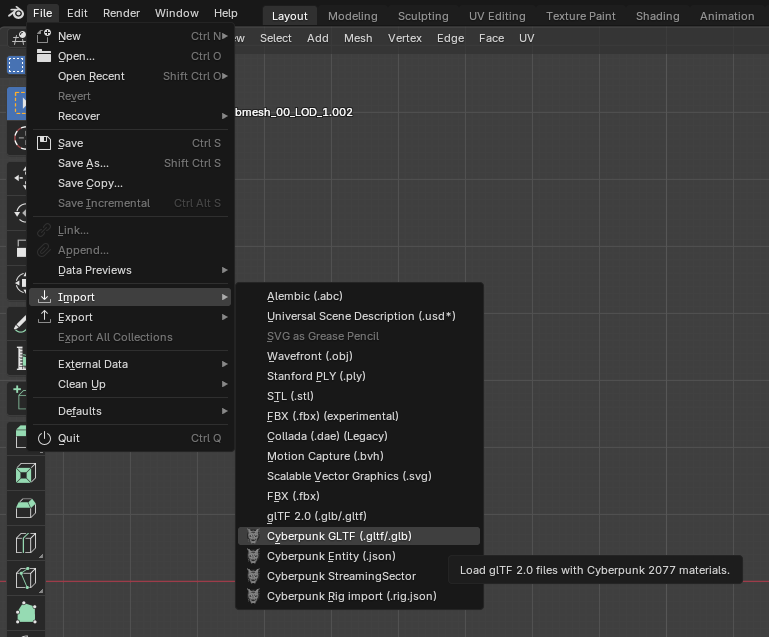
1. Import your custom car's body mesh to use as a reference
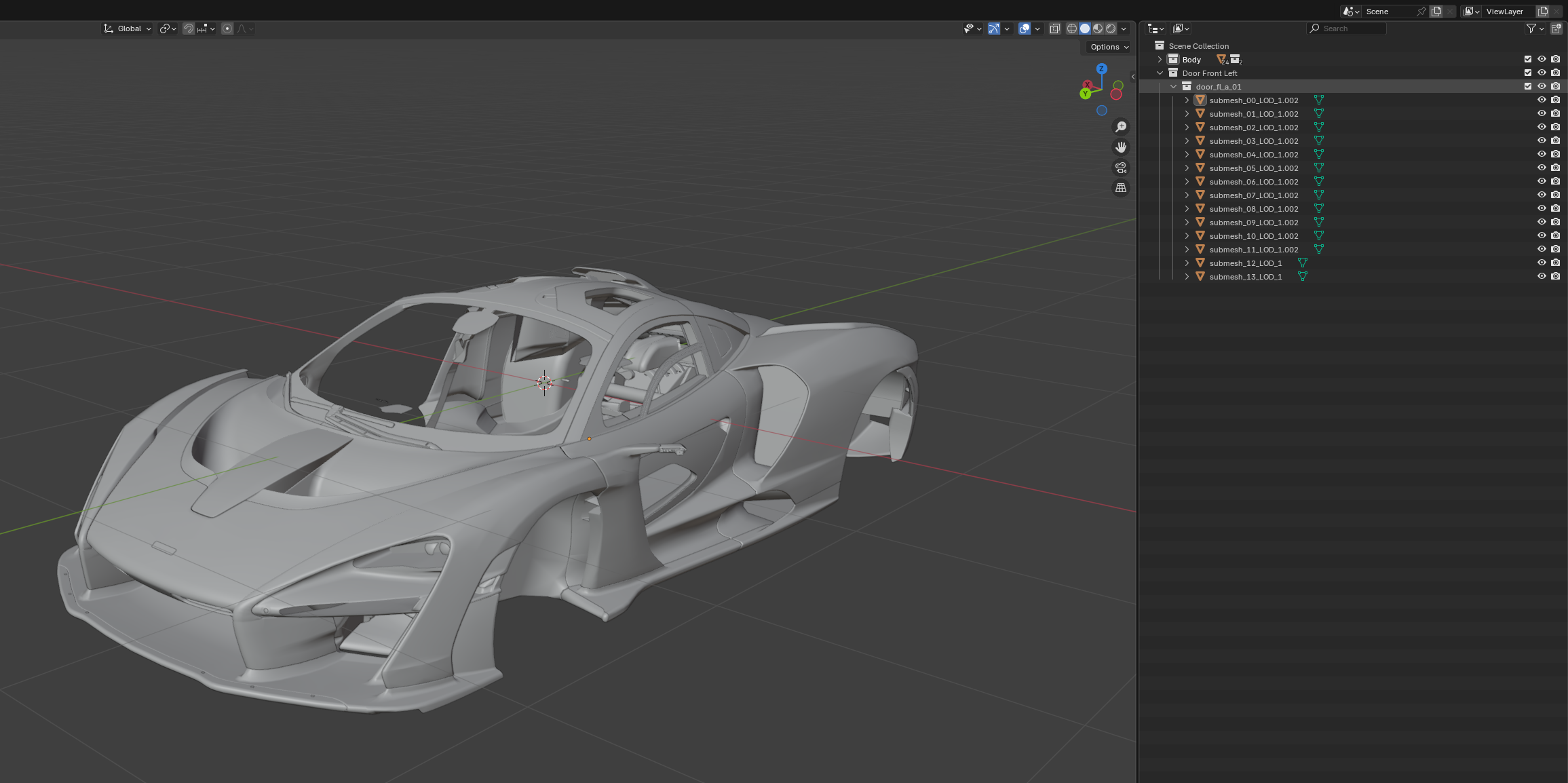
2. Import the front left door
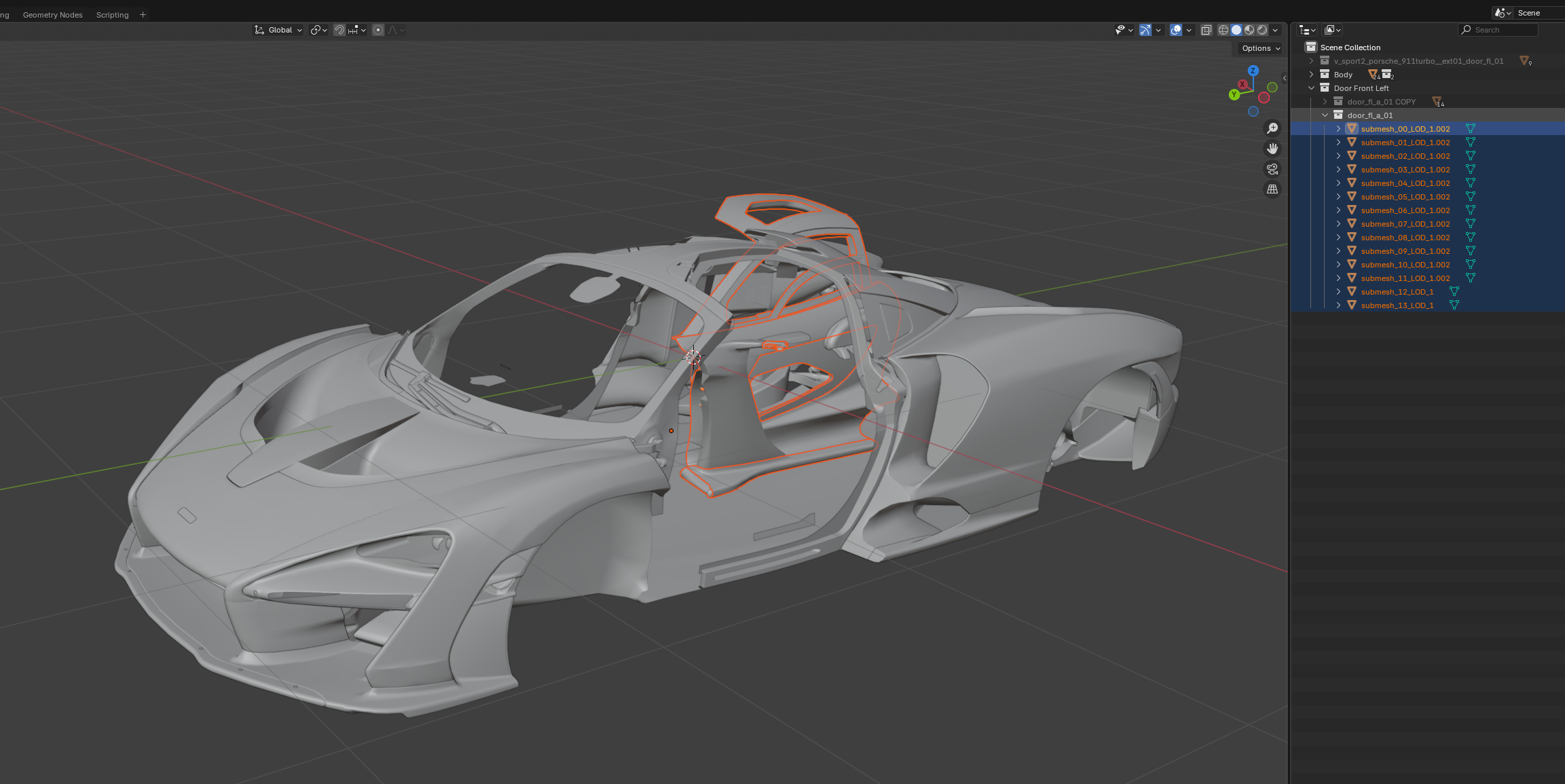
Picture 1A: This is the original position of the front left door mesh and where we want it to be in the game
### Finding the export position
My car mod in this example is using the `.ent` and `.rig` files of the porsche 911 as a base. So I want to import the *porsche front left door* into Blender and see how it's positioned so that I can understand how my custom door mesh should be positioned when exporting:
1. Search the Asset Browser for `porsche door fl mesh`
2. Add it to your project, export it from Wkit and import it into Blender
{% hint style="info" %}
Importing the porsche fl door into Blender, we see that it's not positioned how we'd expect, relative to the body. It is instead located at the point of origin (0,0,0)
{% endhint %}
3. Let's create a copy of our custom car's door (Select it in the outliner on the right - shortcut: `Shift+D`)
4. Keep the backup in place - hide it for now. We'll need it later
Why is the porsche door positioned like this?
Consider the origin in Blender as if it's the "`door_front_left_a`" bone in the deformation .rig that the door mesh is parented to. The `.anims` file that has the animation data tells the door bone how to move and rotate and the door mesh follows, copying its movements.
In this case, the door opens normally like in most cars by rotating around a fixed point (the hinges on the door that are connected to the body of the car).
{% hint style="success" %}
This is a rotation around the z axis with the point of rotation being the origin in Blender. The door is positioned in this way so that the part of the door that is at the origin stays fixed in space while the rest of the door rotates around the z axis.
{% endhint %}
> This is crucial because it means that positioning our mesh slightly differently but still around the origin will change how the door opening animation moves our door in-game
{% hint style="warning" %}
This has NOTHING to do with the position of the door mesh when the door animation is NOT playing. The export position ONLY affects how the animation, or more precisely the door bone, makes the door move!!!
{% endhint %}
No matter where you export the door from inside Blender, in [***Step 3***](#finding-the-x-y-z-values), we will position the door mesh correctly to appear just like in ***Picture 1A*** above.
The problem arises when the animation makes the door move since it requires the door mesh to be exported from a particular position around the origin in Blender!!!
## Step 2: Moving into the Export Position
You should try to place the part of your door that you want to remain stationary during the animation, right on the origin in blender. That point is close to the edge of the door somewhere in the hinges. Look at the porsche door we imported as a reference to position your mesh approximately.
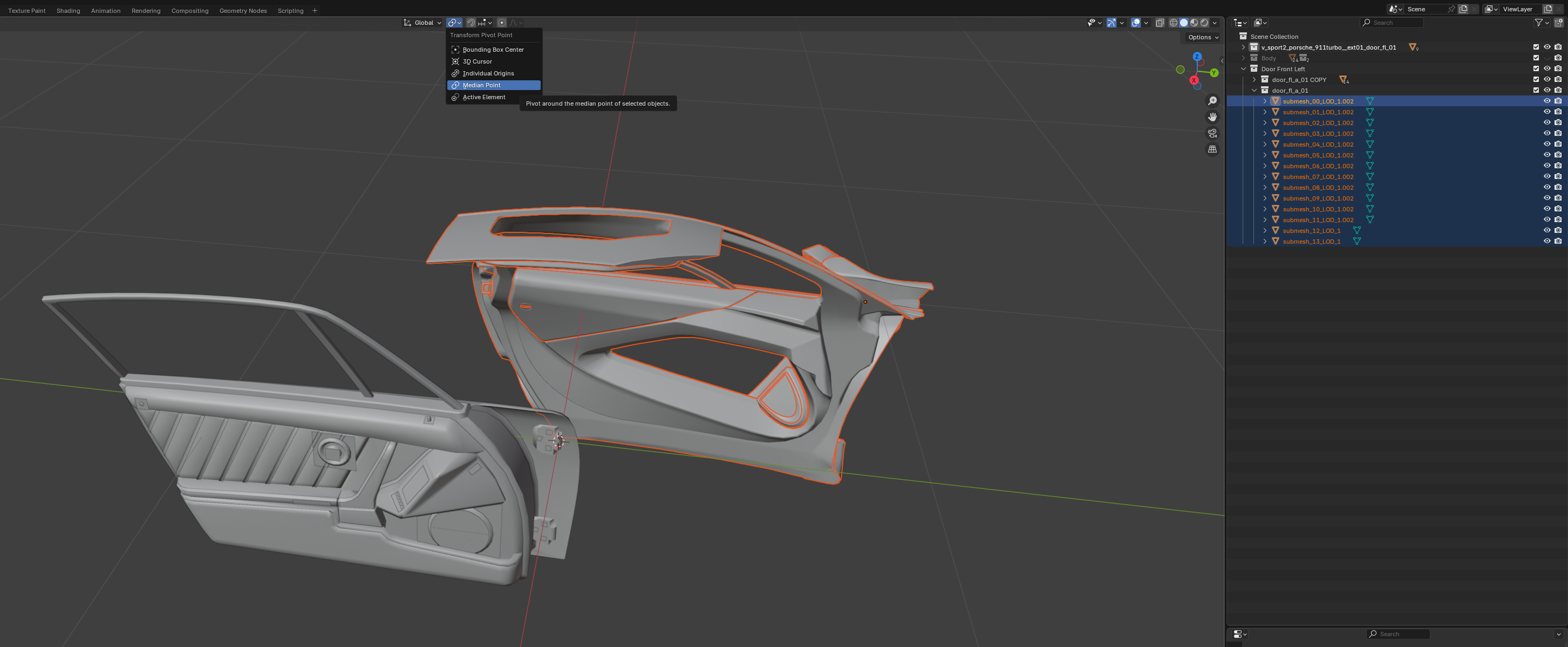
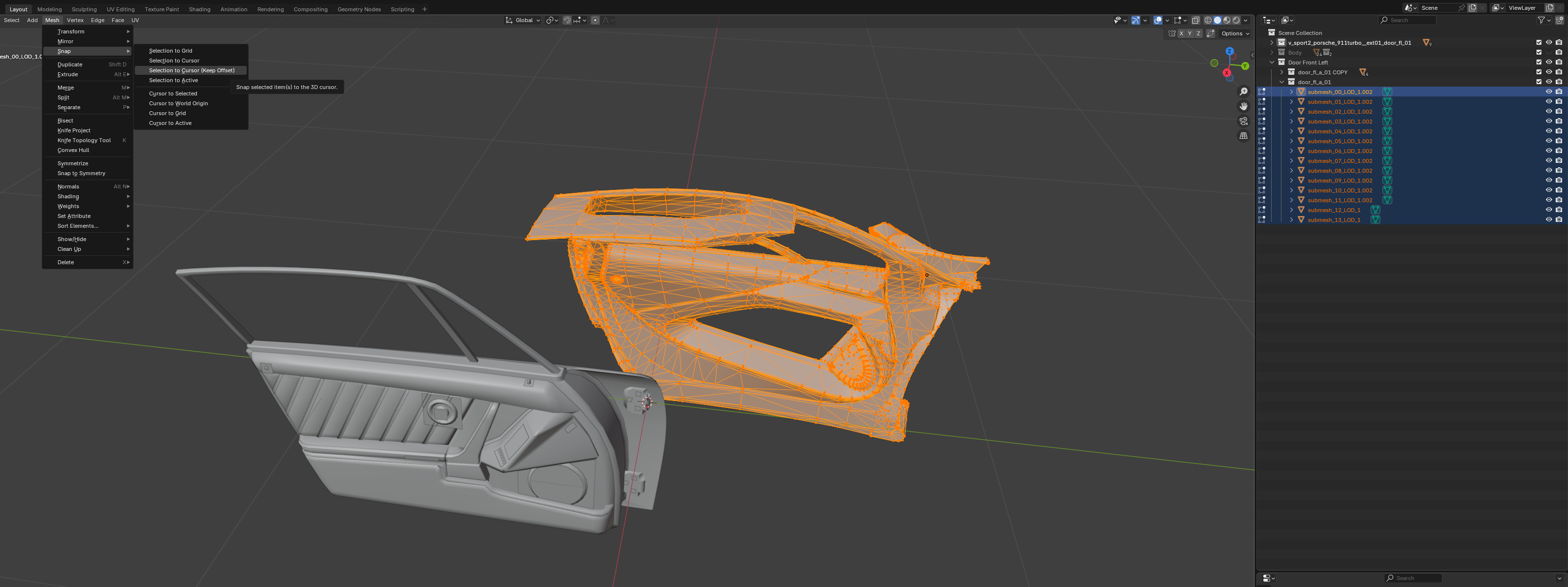
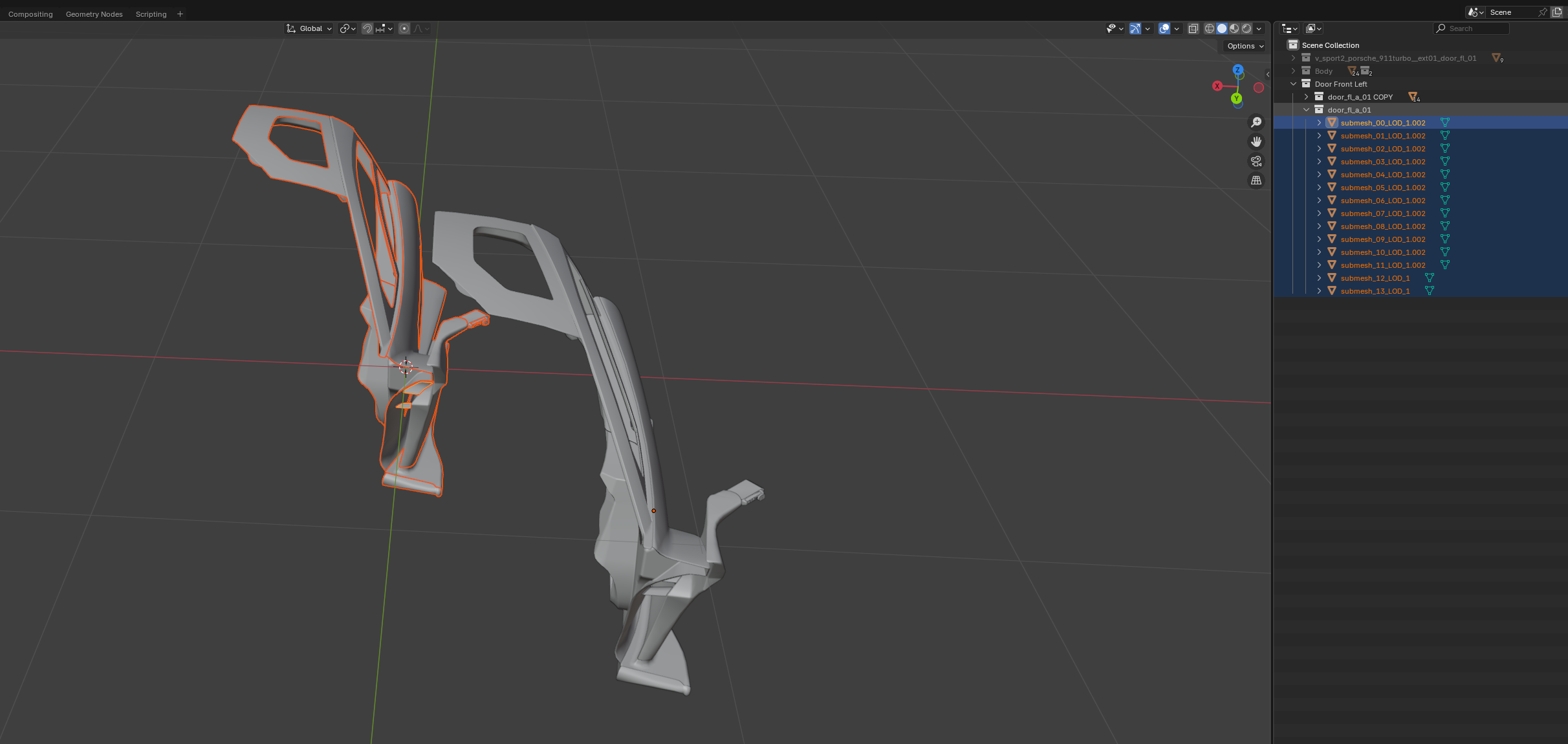
Select the first submesh of your door mesh by clicking it on the right panel, hold Shift and click the last submesh to select them all. Then make sure you click the Median Point as a transform Pivot Point:
Then press Tab to go into Edit mode and press A to select everything. Move the whole door to the origin by selecting Mesh -> Snap -> Selection to Cursor (Keep Offset):
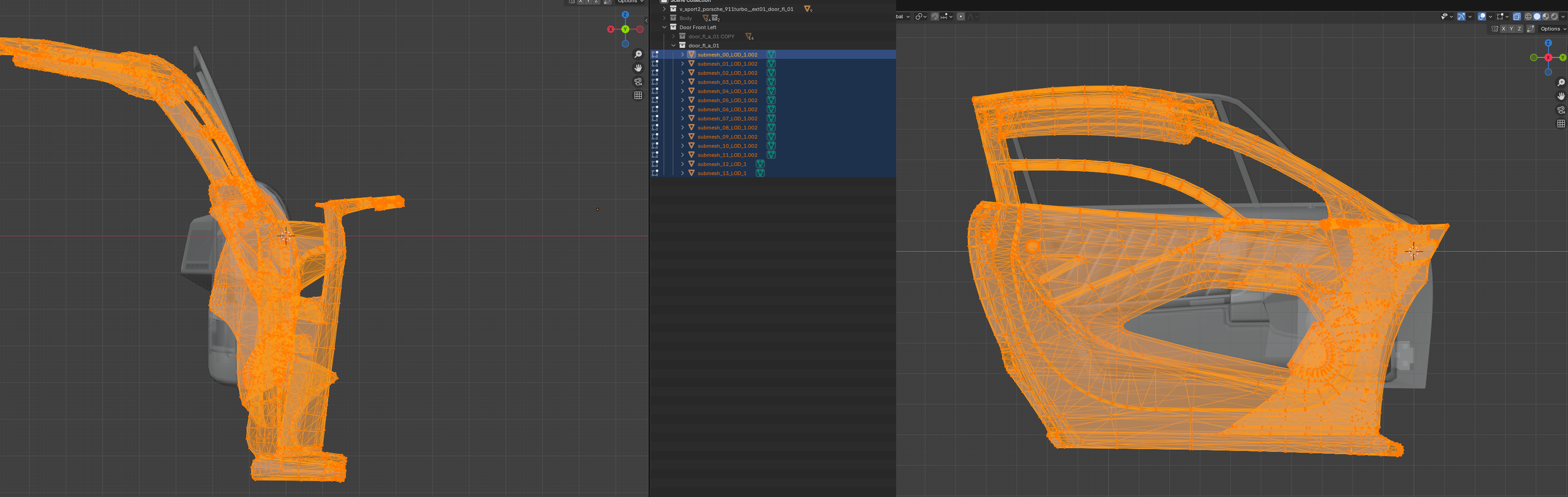
Now in the top right, click the red X ball to view the door from the side through the X axis:
* Press 'G' (allowing you to move the whole selection) and then 'Y' to only move it in the Y axis (back and forth) with your mouse (press enter or click to finalize)
* Do the same by pressing 'G' and 'Z' to position it vertically, how you think it should line up
* Look through the Y axis and move it in the X axis accordingly
{% hint style="danger" %}
DO NOT rotate your door mesh, ONLY move it in X,Y,Z with the G shortcut
{% endhint %}
{% hint style="success" %}
*Blender Tips!*
*Click and hold the middle mouse wheel and move the mouse to rotate the camera around your mouse pointer*
*Press and hold Shift + middle mouse wheel to move the camera with the mouse*
*Press Alt+Z to view in X-Ray mode, when the Porsche mesh is blocking your view*
*Roll the mouse wheel or press and hold Ctrl + middle mouse wheel to zoom in and out*
{% endhint %}
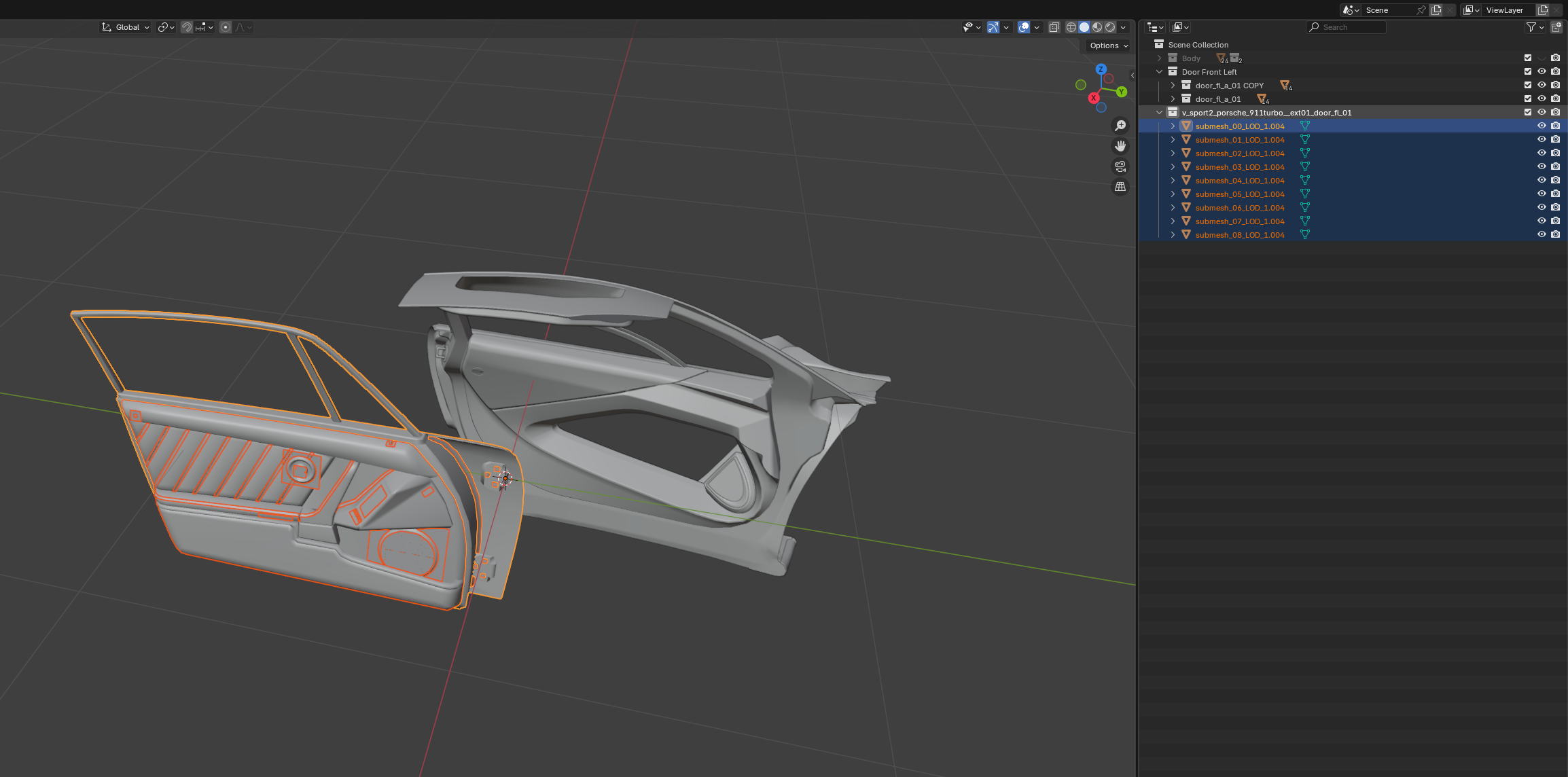
I emphasize that there is not just ONE single correct position. If the door opening animation in the game works with the export position you picked, then that's all that matters. For this example, this is how I've decided to place my custom door in relation to the porsche 911 which is the white door.
It's not easy to pick an export position and it might not work for your custom mesh on the 1st try as it depends on where you manually place your mesh by eye and the actual animation itself. Some trial and error is most likely needed. For now, we will export the door mesh from Blender.
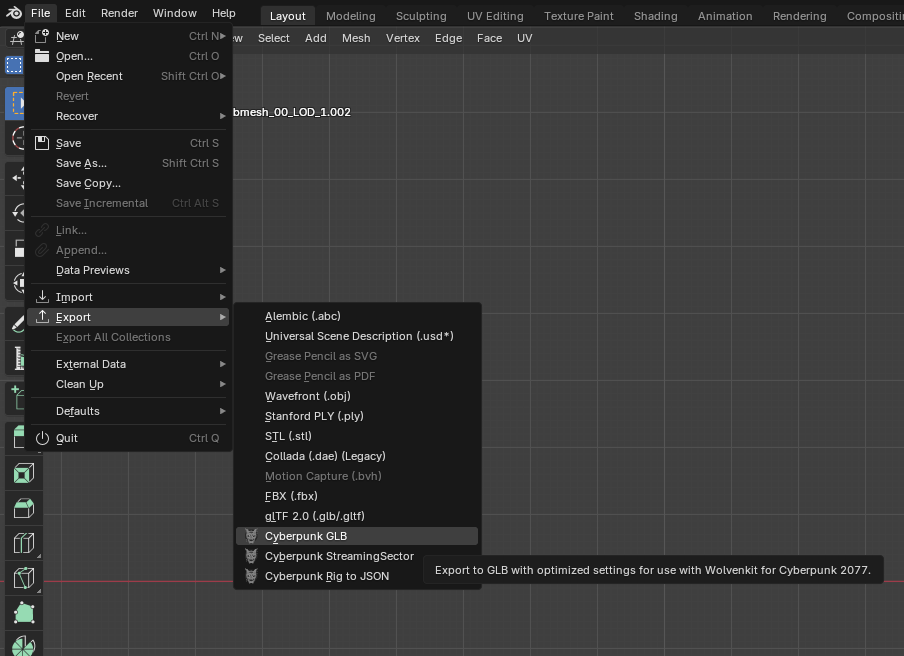
Export and find the path of the .glb in your Wolvenkit project inside the raw folder and replace it with the door mesh in the export position we just chose. Next, go to Tools in Wolvenkit and import the glb.
***
## Step 3: Placing the mesh back to its original position
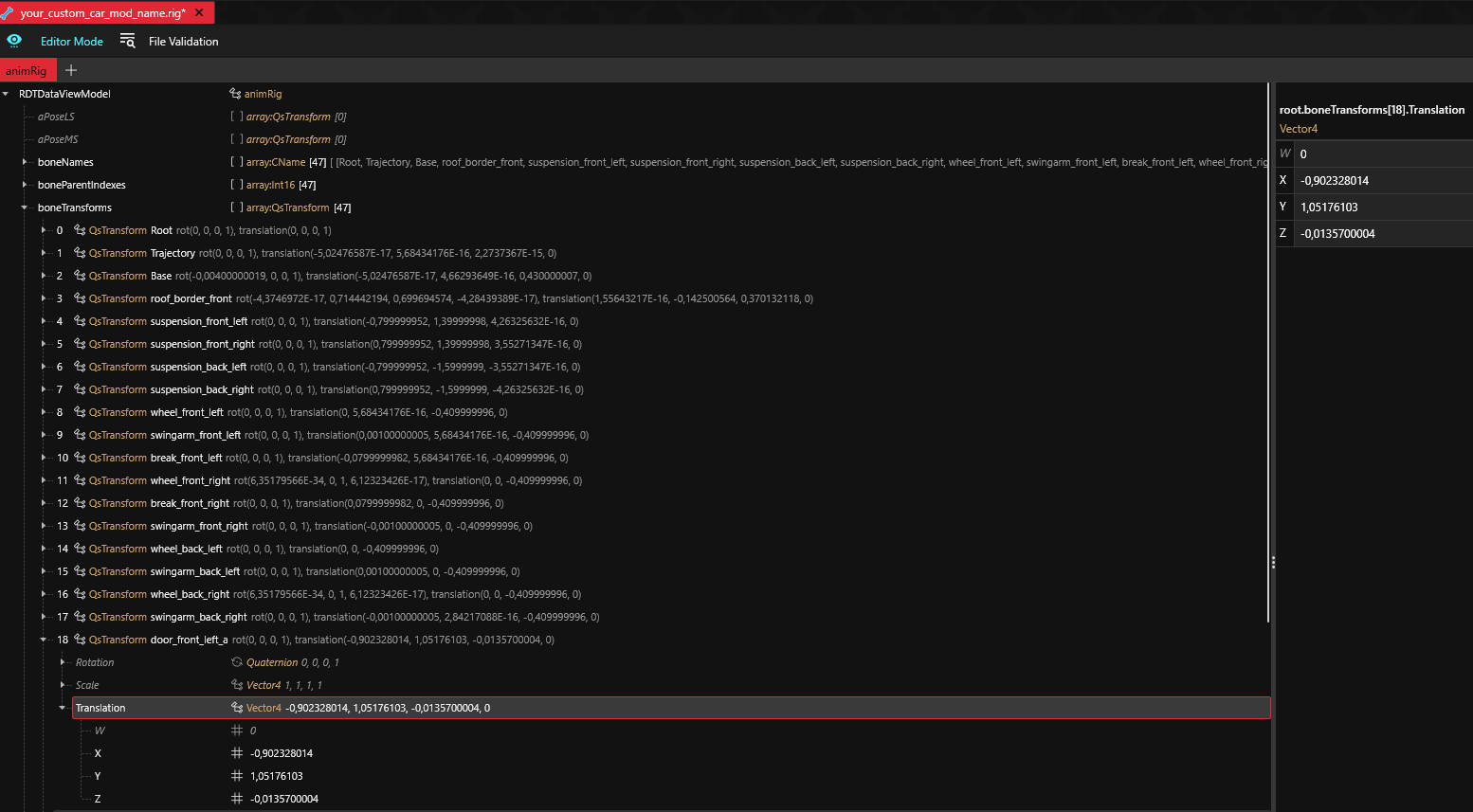
In order for this dynamic mesh to appear in the game and be controlled by the animation file, it needs to be parented to a **bone** from the **deformation rig (**you have to edit the X, Y, Z `boneTransform` values inside the `.rig` file).
### Getting the deformation .rig file
1. Open your vehicle's `.ent` file
2. Expand the `components` array and find the `deformation_rig`
3. In `rig` , you will find the path to the deformation .rig
4. Add it to your project, right click to rename and 'Update in Project Files' to update the path
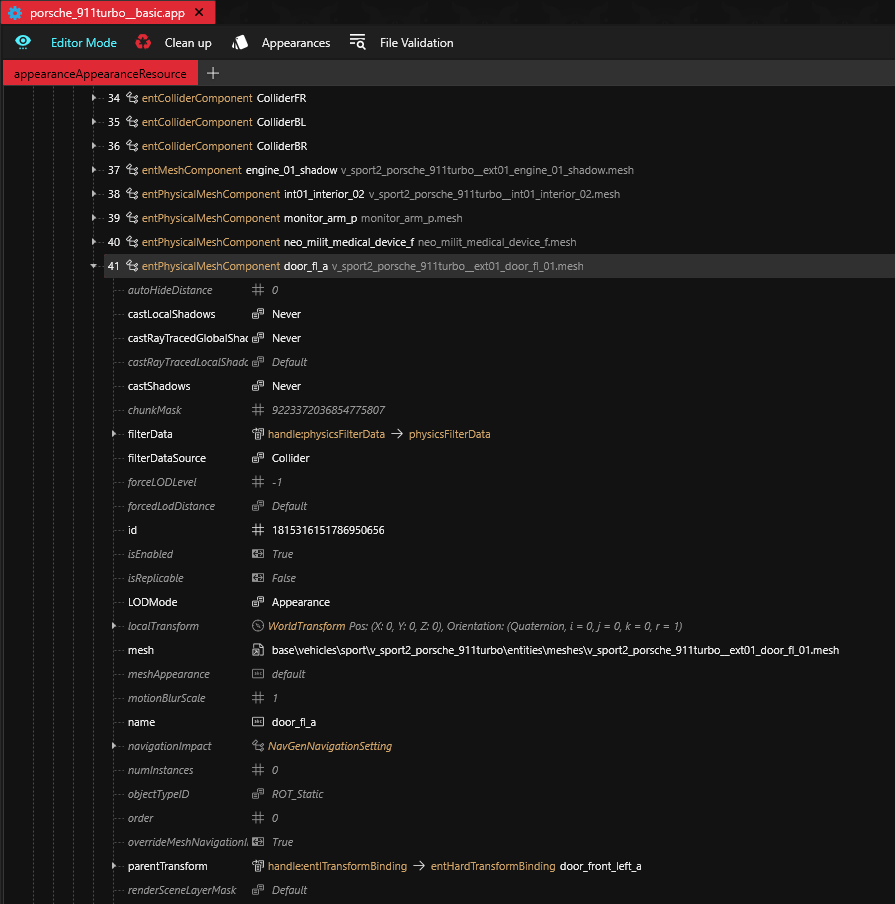
We will need an *`entPhysicalMeshComponent`* inside our car's .app to reference the door mesh.
For this example, my car is mirroring the porsche 911 so I will open its app by finding it in the Asset Browser by searching for "porsche app" :
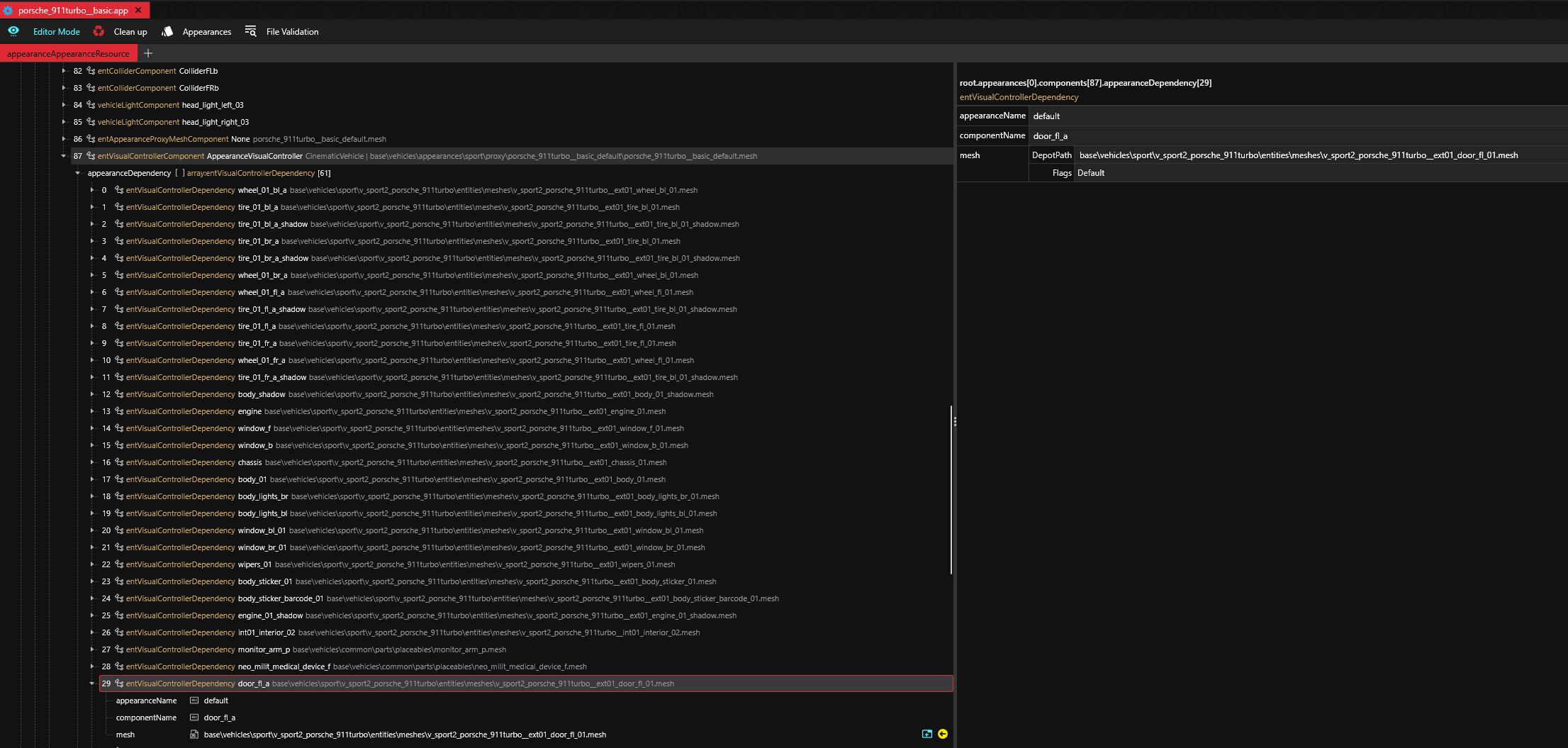
Opening the components list for the default appearance and scrolling down, I find the physical mesh component that corresponds to the front left door. We can see in the ***parentTransform*** at the bottom that it is parented to the "`door_front_left_a`" bone from the deformation .rig file.
I can just copy this whole component and paste it into my car's custom .app file and replace the mesh path of the original porsche front left door mesh with my custom mesh's path that we just imported.
{% hint style="info" %}
Do the same by copying and pasting the `entVisualControllerDependency` of the door mesh from the `AppearanceVisualController` by expanding the appearanceDependency list and replacing that path as well
{% endhint %}
{% hint style="warning" %}
If you don't have a front left door .mesh for your custom car in your project already, then just add the porsche front left door mesh in your project from the Asset Browser and rename it
Then you will need to properly configure it with the right materials and textures
{% endhint %}
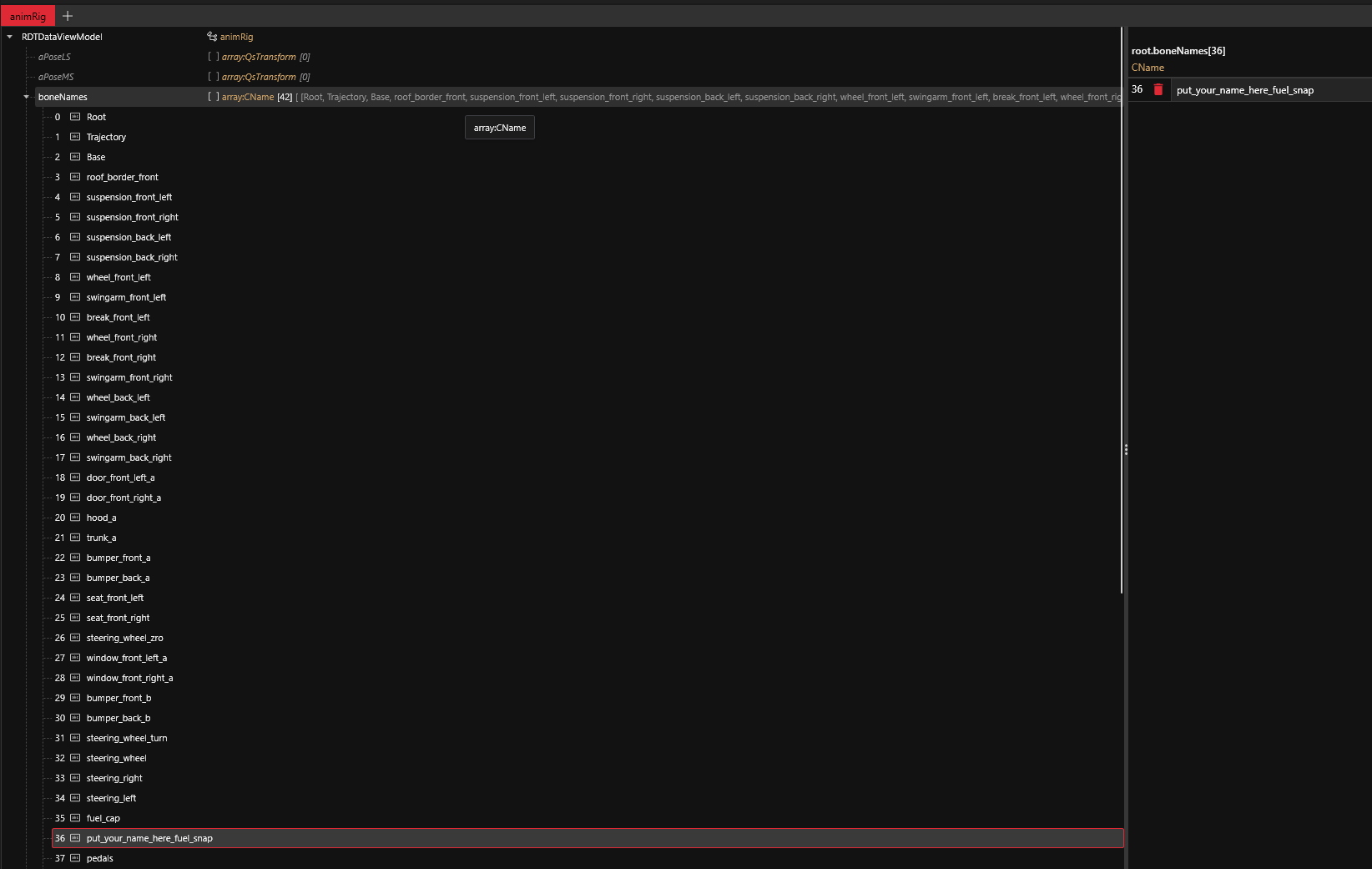
Lastly, expand the `boneNames` list on the top and go to the fuel cap or fuel snap and rename one of those with a unique custom name like so:
> This is done to avoid possible conflicts with the base game car that our custom car is mirroring
>
> Don't forget to do this as it can cause issues with the base game car whose .ent and .rig we copied, renamed and are using for our own car mod
***
### Finding the X,Y,Z values
Now we need to find the transform values we need in order to position the door we just exported in Blender, back to its original position that we made a copy of
Let's head back into Blender, hide the porsche door and make our original door copy visible again:
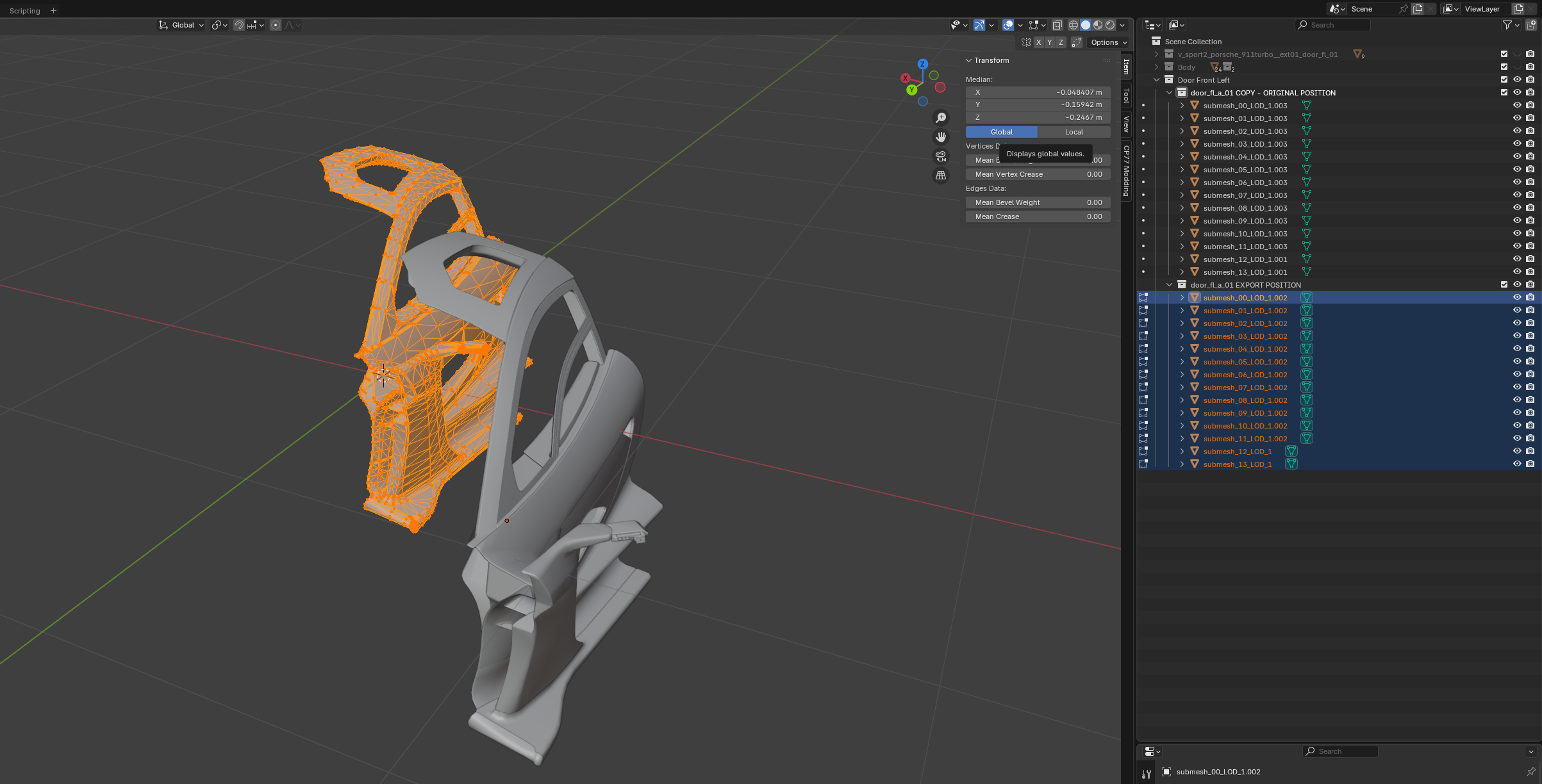
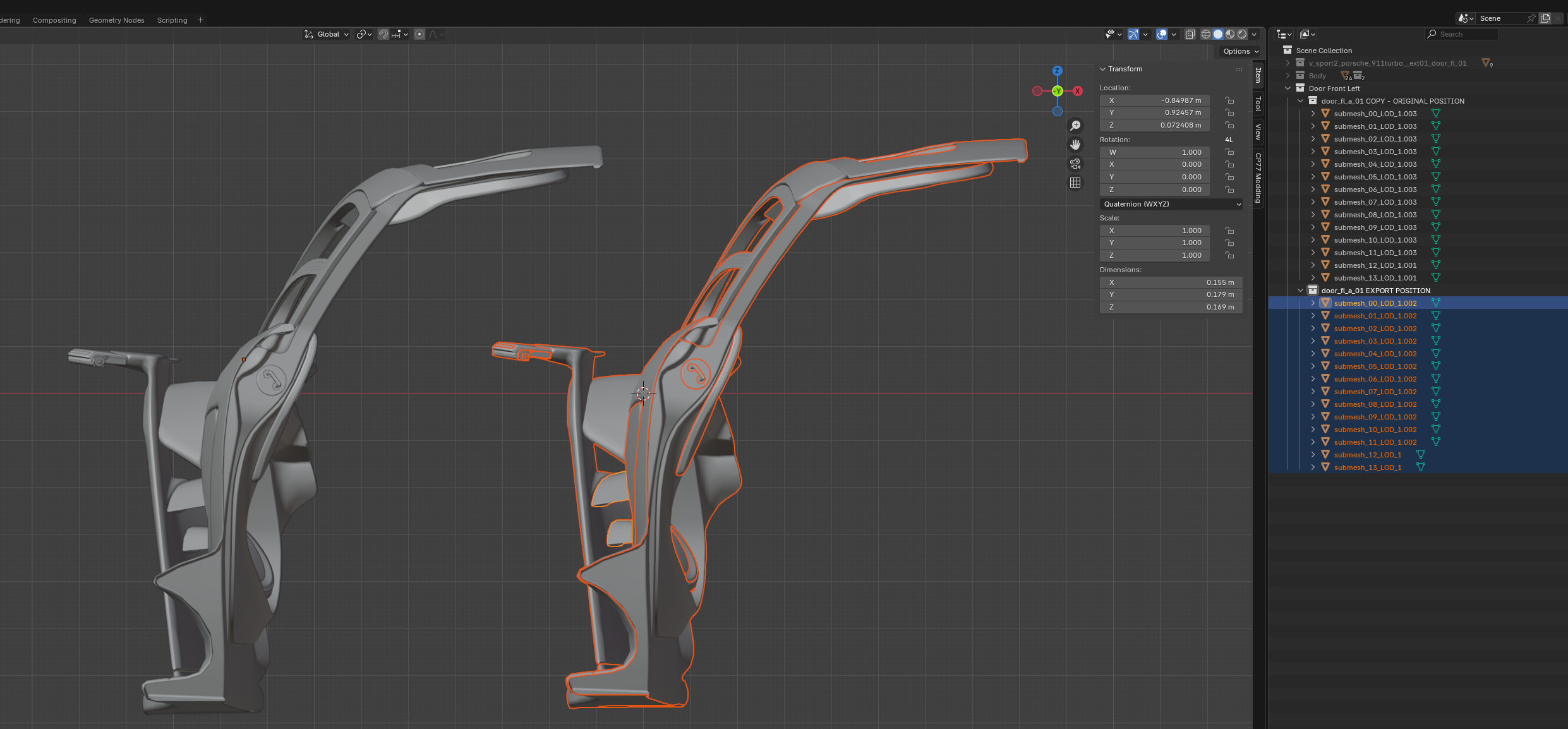
The door in the export position is highlighted in orange. Let's assume that we put 0,0,0 as x,y,z in the "door\_front\_left\_a" bone in the deformation rig. Where would the door be in the game in this case?
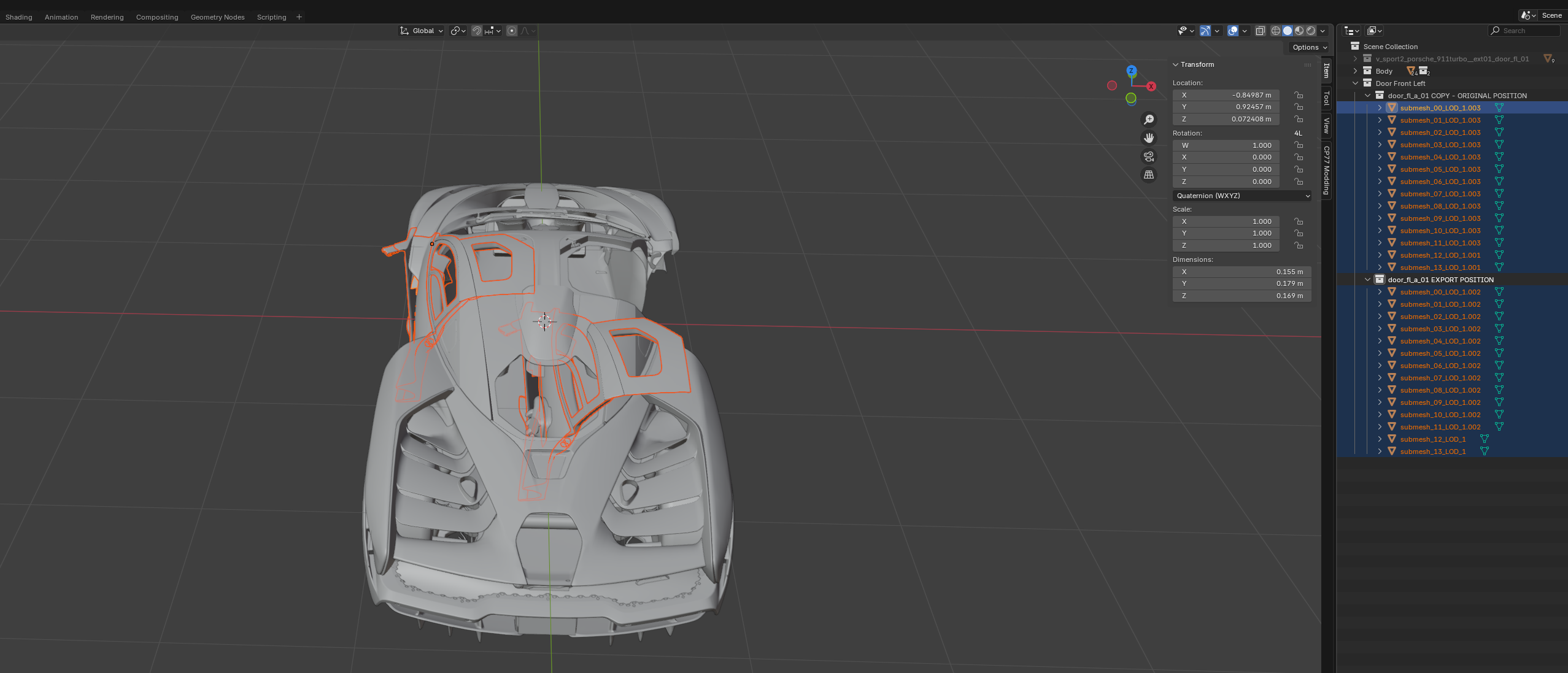
It would be in the exact position we exported it from in Blender. Making the body mesh visible again, here's where the door would be inside the game, relative to the body:
{% hint style="success" %}
So, we want to move the door mesh we just exported back into the original door's position which we have previously copied. Then, we put those displacement values as the X,Y,Z in the boneTransforms and we're done!
{% endhint %}
> To get these values we will need to take each global X,Y,Z value of the door mesh in the Original position and subtract each X,Y and Z global value of the door in the Export position respectively
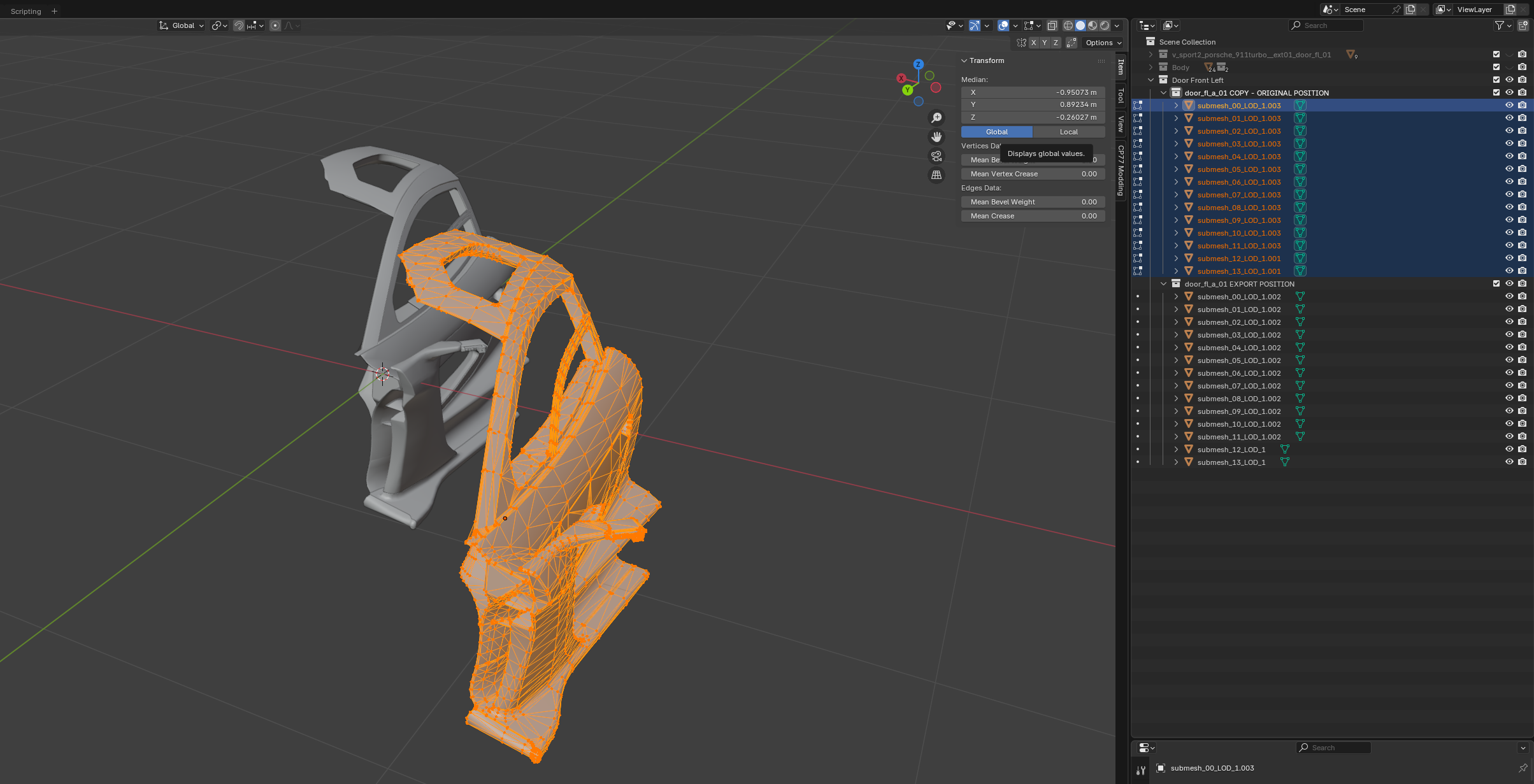
1. Select all of the submeshes of the door mesh **in the original position**
2. Press 'N' to bring up the transform panel on the right and make sure to ***click on GLOBAL*** to view the global values and not the local ones
To do the calculations, I just open 3 different pages in my browser. I copy and paste the X value in the first page, the Y value in the 2nd and the Z value in the third.
Now, select all of the submeshes of the door in the export position and take note of each global XYZ value as well:
Let's start with the X value. In the original position mesh, it is -0.950735 and in the export position mesh it's -0.048407. So, the X value I'd need to enter in Wolvenkit for the `door_front_left_a bone` is:
```
-0.950735-(-0.048407)= -0.902328
```
{% hint style="warning" %}
Be careful, your Wkit and Blender might use different decimal symbols depending on how you have them set up. In my case, Blender uses dots to separate decimal places and Wkit uses commas. This might differ in your case. So, I copy the result from the browser page and put it into Wkit with a comma as a decimal separator
{% endhint %}
For my example custom door mesh, I will enter -0,902328 into Wkit for the X value for my door mesh.
In the same way, the Y and Z values for this example are:
```
0.892342-(-0.159419)= 1.051761 and -0.260268-(-0.246698)= -0.01357
```
What do these values mean?
What do the positive and negative values mean?
This is simply explained by Boe6 in the following excerpt taken from their guide:
So, let's make our body mesh visible again to see if these displacement values make sense:
The door placed in the export position at the origin (black crosshair), clearly needs to be moved forwards `(+) value` and to the left `(-) value` , in order to return to its original position relative to the body.
Our values do exactly that by moving it 0.902328 to the left and 1.051761 forward. The Z value is quite small so it's not as easy to see but if we view from the y axis:
Now we can see that the door in the export position (highlighted in orange) needs to also be very slightly lowered, to match the original position. This confirms our Z value which is `negative (-)`
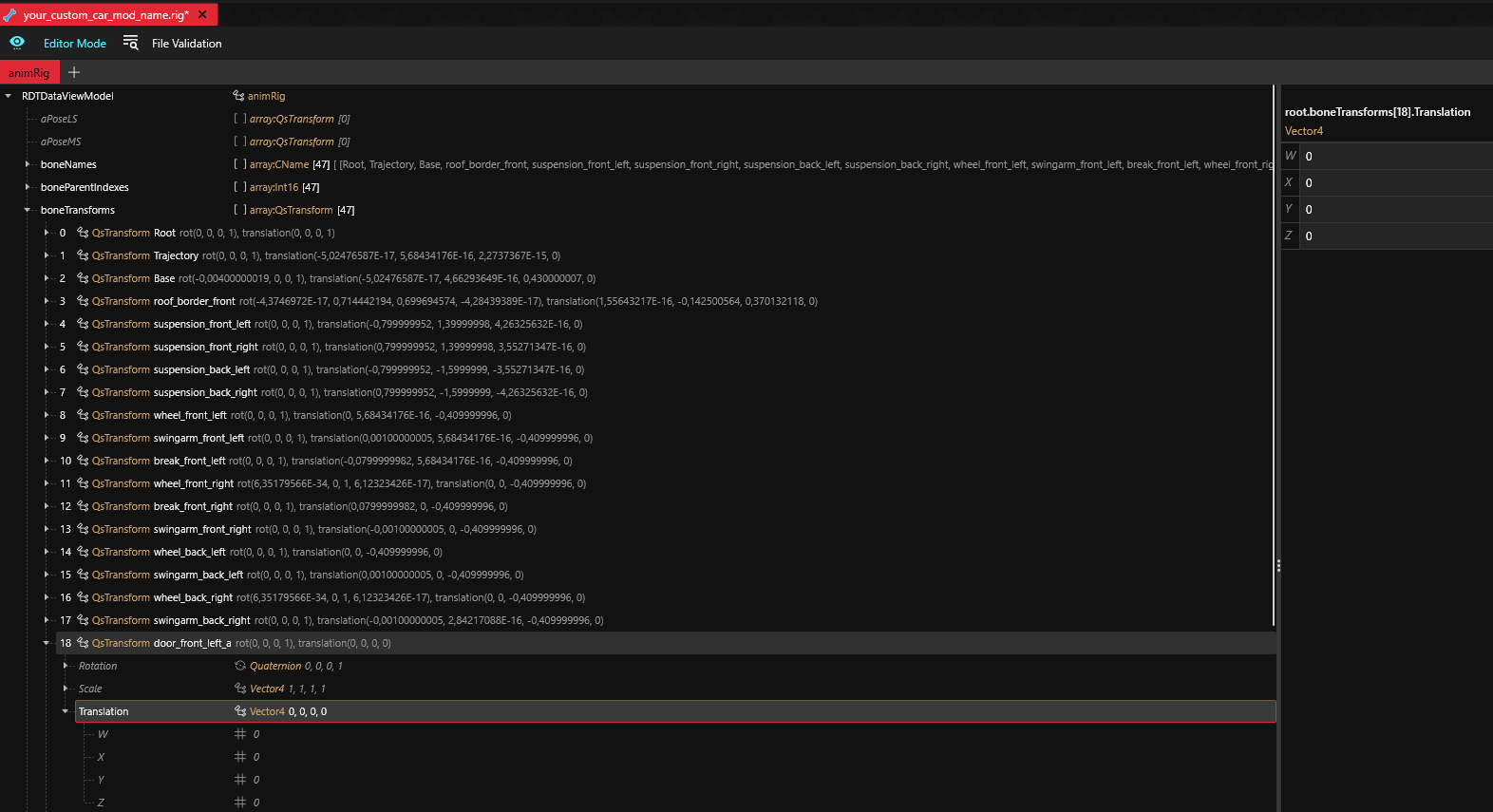
Entering the XYZ values and checking the result
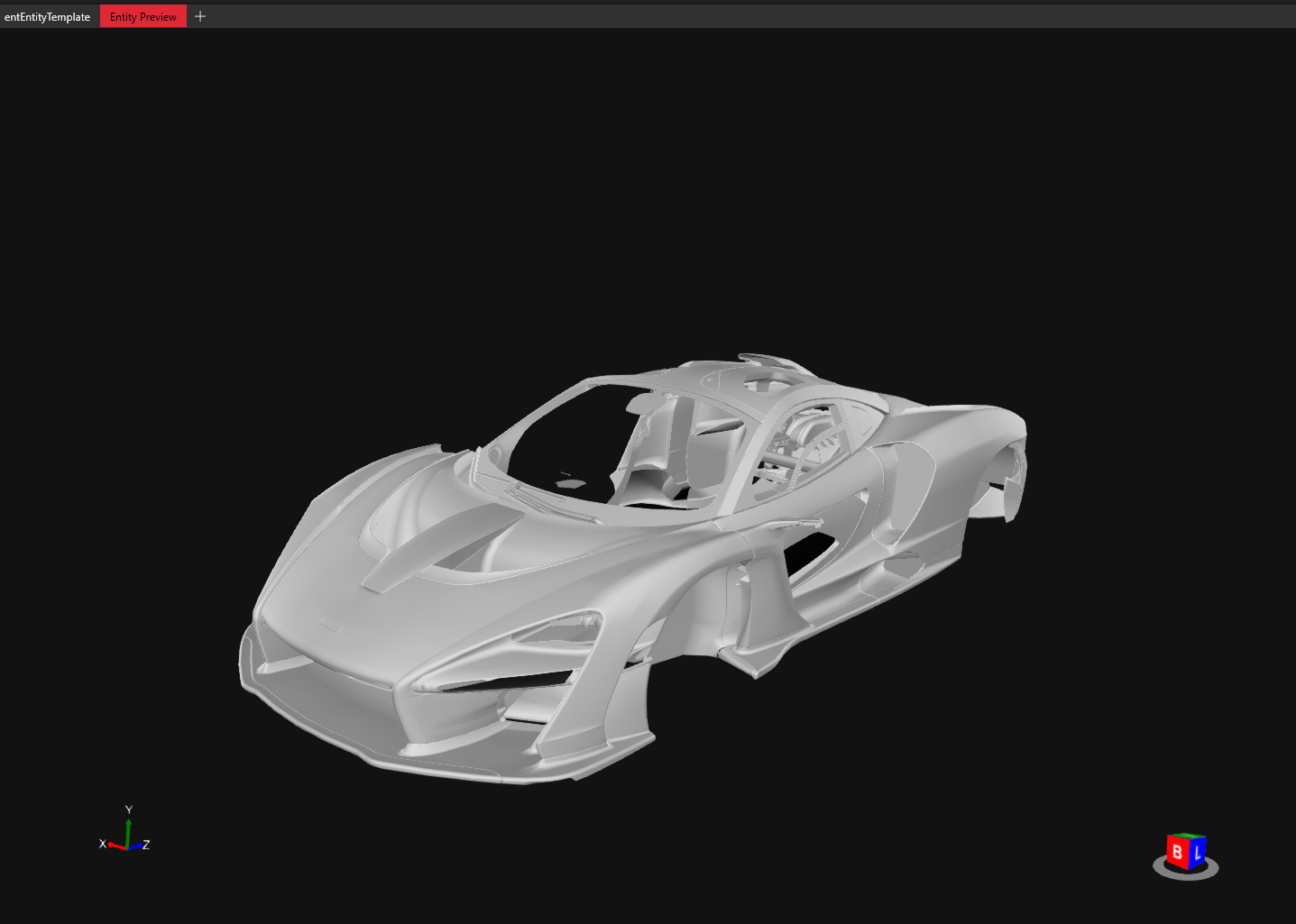
After inputting your own values in the "`door_front_left_a`" boneTransforms and saving it, you can open your .ent, go into *Entity Preview* and see if your mesh is positioned correctly in relation to the body.
{% hint style="danger" %}
NOTICE: Tires and wheels won't be correctly displayed in entity preview if you have only adjusted the boneTransforms values in the deformation .rig until those values are also updated in the vehicle .rig!
Refer to the "[*Adding Tires, Wheels and Brake Calipers*](/cyberpunk-2077-modding/modding-guides/vehicles/adding-moving-parts-to-your-vehicle/adding-wheels-tires-and-brake-calipers.md)" page in this guide for adding these meshes
{% endhint %}
The door from the export position is now sitting where it originally was!
{% hint style="success" %}
You can now load your mod in the game and check how the animation moves your mesh. If it looks good, that means that the export position you picked in [Step 2](#step-2-moving-into-the-export-position) worked and you are done!
{% endhint %}
{% hint style="danger" %}
However, if the mesh is clipping into the body or floating in the air, you will have to follow the next page of the guide and readjust the export position, going through [Step 3](#finding-the-x-y-z-values) again with new values and retest in-game
{% endhint %}
### What if you wanted to add a different dynamic mesh like the trunk?
> Then in the beginning of [Step 3](#step-3-placing-the-mesh-back-to-its-original-position), you would have to have an `entPhysicalMeshComponent` in your app with your custom trunk .mesh file path and the appropriate *parentTransform* so that it is parented to the `trunk_a` bone in the rig
>
> Just copy the trunk component from the .app of the car you're mirroring. In my example it's the porsche 911 that I chose for my car
>
> Lastly, you would input the XYZ transform values you found in the boneTransforms of the `trunk_a` bone in the deformation .rig
***
Adding the Steering Wheel
To add the ***steering wheel***, you input the XYZ displacement values into the `"steering_wheel_zro"` boneTransforms in the deformation .rig file under *Translation* just like we did above. To place the player's hands on the steering wheel, change the `"steering left"` and `"steering right"` bone xyz values.
You can create a cube mesh in blender with the Shift + A shortcut and place it manually by eye where you think the palm of the hand should rest on each side of the steering wheel.
Then go to edit mode with the cube selected and press N to see the approximate xyz values you need to put in the steering left and right bones.
{% hint style="warning" %}
NOTICE: If the hands move back and forth, clipping through the steering wheel when the car is accelerating or braking, then that's caused by the values in the steering left and steering right bones. This usually happens if the y value is too high, for example. Therefore, you should make small changes and test frequently in-game
If this happens, find the rig of the car you are mirroring in the asset browser, open it without adding to project, copy the x,y and/or z value from the steering left and steering right bone and paste it into your rig to reset
{% endhint %}
---
# Agent Instructions
This documentation is published with GitBook. GitBook is the documentation platform designed so that both humans and AI agents can read, navigate, and reason over technical content effectively. Learn more at gitbook.com.
## Querying This Documentation
If you need additional information that is not directly available in this page, you can query the documentation by asking a question.
Perform an HTTP GET request on the following URL with the `ask` and `goal` query parameters:
```
GET https://wiki.redmodding.org/cyberpunk-2077-modding/modding-guides/vehicles/adding-moving-parts-to-your-vehicle.md?ask=&goal=
```
`ask` is the immediate question: it should be specific, self-contained, and written in natural language.
`goal` is what the user is ultimately trying to achieve, the reason they need the answer. Sharing it helps GitBook give you a better, more relevant answer. A goal is most helpful when it describes the outcome the user wants rather than restating the question. For example, with `ask=how do I create an API token`, a goal like `automate deployments from our CI pipeline` lets GitBook tailor the answer to that use case.
The response will contain a direct answer to the question and relevant excerpts and sources from the documentation.
Use this mechanism when the answer is not explicitly present in the current page, you need clarification or additional context, or you want to retrieve related documentation sections.