> For the complete documentation index, see [llms.txt](https://wiki.redmodding.org/cyberpunk-2077-modding/llms.txt). Markdown versions of documentation pages are available by appending `.md` to page URLs; this page is available as [Markdown](https://wiki.redmodding.org/cyberpunk-2077-modding/modding-guides/world-editing/native-interactions-framework/apartment-purchasing.md).
# Apartment Purchasing
This page covers how to setup a purchasing interaction for custom apartments
{% hint style="warning" %}
The apartment purchasing interaction is more advanced than other interactions, and requires a decent level of knowledge in various areas of modding
Make sure to familiarize yourself with the topics described in the `Knowledge Requirements` section
{% endhint %}
## Knowledge Requirements
* Know how to use NIF to [place interactions](/cyberpunk-2077-modding/modding-guides/world-editing/native-interactions-framework/interaction-settings.md)
* Know how to setup NIF [interactions with props](/cyberpunk-2077-modding/modding-guides/world-editing/native-interactions-framework/interactions-with-props.md)
* Know how to work with [World Builder](/cyberpunk-2077-modding/modding-guides/world-editing/object-spawner.md), including:
* [Building ](/cyberpunk-2077-modding/modding-guides/world-editing/object-spawner/quick-start.md)and [exporting](/cyberpunk-2077-modding/modding-guides/world-editing/object-spawner/exporting-from-object-spawner.md)
* [Entity Instance Data](/cyberpunk-2077-modding/modding-guides/world-editing/object-spawner/features-and-guides/entity-instance-data.md) editing
* Adding custom [LocKey's](https://wiki.redmodding.org/cyberpunk-2077-modding/modding-guides/world-editing/native-interactions-framework/pages/9GcEh2c9jE9KP3lsDmlP#so-we-edit-onscreens.json)
* Adding [custom images and creating inkAtlas](/cyberpunk-2077-modding/modding-guides/custom-icons-and-ui/adding-items-preview-images.md#generating-the-inkatlas)
* Importing [custom videos](broken://pages/x92B2VKTRfEOaOWgoCM9#convert-your-mp4-video-file)
## Interaction Settings
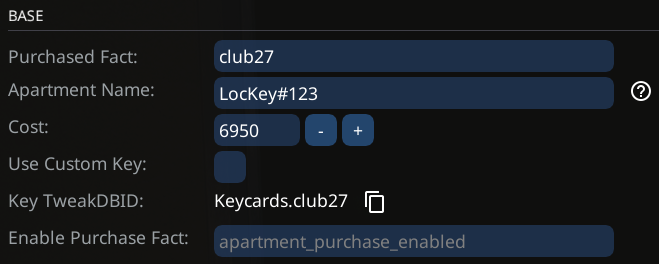
### Basic Settings
* **Purchased Fact**:
* This is the first thing you should setup, give it some unique identifier (Should not contain spaces or special characters)
* This fact will be set to 1 once the apartment is purchased
* **Apartment Name**:
* This is the main-displayed name of the apartment (On the map, tutorial and messages)
* This is a **LocKey**, you can either use WolvenKit's [LocKey Browser](https://wiki.redmodding.org/wolvenkit/wolvenkit-app/editor/lockey-browser) to find existing ones, or [add your own](https://wiki.redmodding.org/cyberpunk-2077-modding/for-mod-creators-theory/files-and-what-they-do/file-formats/translation-files--json)
* **Cost**:
* This is simply the cost of the apartment
* **Use Custom Key (Optional)**:
* If activated, the player will be given the specified item when purchasing the apartment
* **Key TweakDBID**:
* This is the TweakDBID of the key item which the player will be given when purchasing the apartment (Unless Use Custom Key is active)
* **Enable Purchase Fact (Optional)**:
* If this is set to something, the apartment will only be available for purchasing once the specified quest fact is not 0
### Purchase Terminal Settings
{% hint style="info" %}
Here you can set whether to use a Motel-Style door terminal, or a hand-scanning tablet for the interaction
If you do not want to use any of that, simply use the door terminal and leave the NodeRef empty
{% endhint %}
* `Purchase Object`:
* What type of object to use for purchasing
* Door Terminal: Simply wall mounted terminal, no animation
* Tablet Hand Scanner: Tablet with "hand placing and scan" animation
* More on this can be found in the "Setting up objects" section
* `Purchase Object NodeRef`:
* NodeRef to the Door Terminal / Tablet
### Mappin Settings
* **Purchase Mappin Position**:
* This is where the "Purchase" type mappin will be placed if the apartment is purchasable
* **Purchased Mappin Position**:
* This is where the "Apartment" type mappin will be placed once the apartment is purchased
{% hint style="info" %}
Usually, you would place the the "Purchase" mappin at the location of the interaction, and the "Purchased" inside the apartment
{% endhint %}
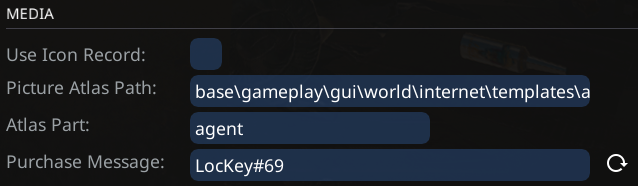
### Image and Message Settings
* **Use Icon Record**:
* If this is turned on, you can specify a `UIJournalIcons` TweakDB record which is to be used as the apartment image
* **Picture Atlas Path** (If `Use Icon Record` is off):
* This is the path to your `.inkatlas` which contains the image to be used
* **Atlas Part** (If `Use Icon Record` is off):
* This is the name of the atlas part within your `.inkatlas` which is to be used as the image
* **Purchase Message** (Optional):
* This is a **LocKey** which is the message which will be sent by El Capitan once the apartment is purchasable (Message contains the text specified by the **LocKey** + Image)
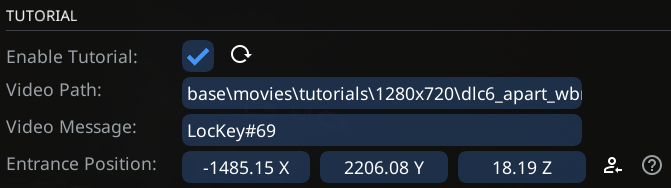
### Tutorial Settings
* **Enable Tutorial**:
* If this is turned on, the tutorial will be shown (Once) if the player is near (<1.5m) the `Entrance Position`
* **Video Path**:
* Path to a `.bk2` file which is the video that will be played
* Video should be 16:9, preferrably at a resolution of 1280x720
* **Video Message**:
* **LocKey** for the text that will be displayed alongside the video
* **Entrance Position**:
* Position used for triggering the tutorial (When player is <1.5m from the position)
* Should be placed just behind the apartment's entrance door, to prevent premature triggering)
## Setting Up Objects
### Purchase Device
* When using the Tablet interaction, simply use the `Tablet Hand Scanner` prefab provided in WB
* If you do not know what this means, head over to the [Interactions with Props](/cyberpunk-2077-modding/modding-guides/world-editing/native-interactions-framework/interactions-with-props.md) page
* When using the Door Terminal interactions, use
* `base\gameplay\devices\apartment_screen\motel_screen_1.ent`
* Assign a NodeRef to it, which you then use as the `Purchase Object NodeRef`
* Additionally, expand the Entity Instance Data header and set the following checkboxes to off:
* `controller -> persistentState -> allowAutomaticRentStatusChange`
* `controller -> persistentState -> randomizeInitialOverdue`
{% hint style="success" %}
Tablet Interaction: Is made up of a tablet and a "hand placing" animation, tablet will play a little glowing hand effect during the animation
Door Terminal: Wall mounted motel terminal, no animation. Will initially show "Free" and switch to "Occupied" once purchased (Make sure to follow the additional steps outlined above)
{% endhint %}
### Apartment Door
* Technically any door that can be opened / closed should work, but for this example we will be using:
* `base\gameplay\devices\doors\final\single_door.ent`
* This door has lots of appearance options
* The only thing we need to do is set the door to require our apartment key item (You can get it from the `Base` section in the interaction UI)
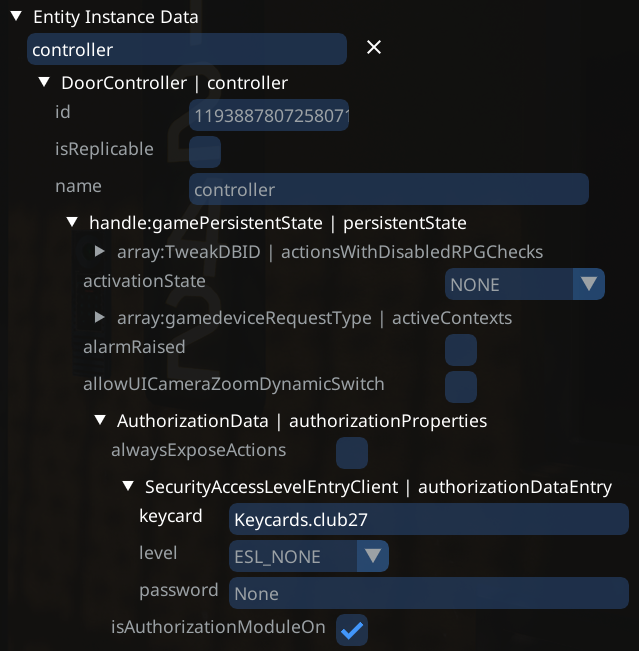
* Spawn the door and select it
* Expand the Entity Instance Data header
* Go to `controller -> persistentState -> authorizationProperties -> authorizationDataEntry -> keycard`
* Copy the keycard TweakDBID in the `keycard` field
{% hint style="warning" %}
Keep in mind that for the door to be properly locked, and be unlockable with the keycard, you need to [export ](/cyberpunk-2077-modding/modding-guides/world-editing/object-spawner/exporting-from-object-spawner.md)the door from WorldBuilder and import the project into WolvenKit
{% endhint %}
## WolvenKit Template Project
{% hint style="warning" %}
You **MUST** change any unique values and paths in the template project to avoid conflicts.
This means changing LocKey's primaryKey and ensuring folder and file names are changed from the default
{% endhint %}
* To make setting up the additional data (LocKey's and image) in WolvenKit easier, you can use the provided template project
{% file src="/files/1JgKqipluq67OQoutwbg" %}
### Using the template
* Create a new WolvenKit project
* Navigate to the projects root folder (Click the yellow folder icon folder in the project explorer)
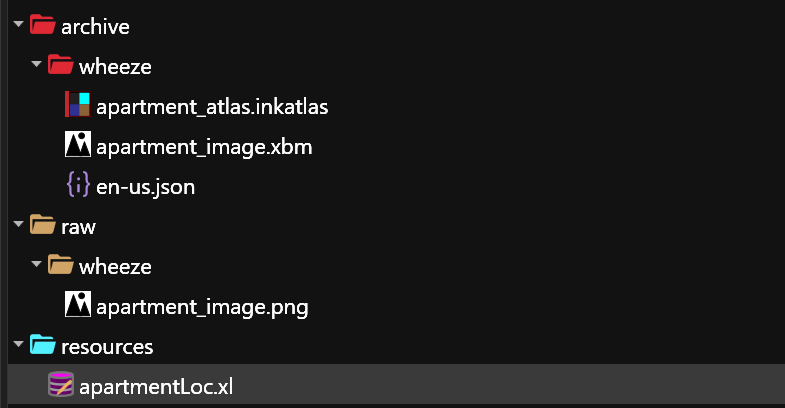
* Place the contents of the template zip inside the folder
* You should now have the following files and folders:
### Custom Path Files
* Base folder:
* Right click the `wheeze` folder and choose rename
* Enter a unique name
* Check `Update in Project Files` before confirming
* XL File:
* Rename the `apartmentLoc.xl` file
* Open the file and adjust the path `wheeze\en-us.json` (Must be adjusted since the folder name has changed)
### Custom Text
* To change the text used, simply open the `en-us.json` file in WolvenKit
* There are 3 entries, for the apartment name, the custom message sent by el capitan and the text displayed with the video tutorial
* Change those
* Change the `primaryKey` of each one to something unique (Go big)
* The LocKey that you enter in NIF is simply `LocKey#primaryKey`
### Custom Image
* To change the image, modify the `raw\rootName\apartment_image.png` file
* Then, simply use the `Tools -> Import Tool` to import the modified file
---
# Agent Instructions
This documentation is published with GitBook. GitBook is the documentation platform designed so that both humans and AI agents can read, navigate, and reason over technical content effectively. Learn more at gitbook.com.
## Querying This Documentation
If you need additional information that is not directly available in this page, you can query the documentation by asking a question.
Perform an HTTP GET request on the following URL with the `ask` and `goal` query parameters:
```
GET https://wiki.redmodding.org/cyberpunk-2077-modding/modding-guides/world-editing/native-interactions-framework/apartment-purchasing.md?ask=&goal=
```
`ask` is the immediate question: it should be specific, self-contained, and written in natural language.
`goal` is what the user is ultimately trying to achieve, the reason they need the answer. Sharing it helps GitBook give you a better, more relevant answer. A goal is most helpful when it describes the outcome the user wants rather than restating the question. For example, with `ask=how do I create an API token`, a goal like `automate deployments from our CI pipeline` lets GitBook tailor the answer to that use case.
The response will contain a direct answer to the question and relevant excerpts and sources from the documentation.
Use this mechanism when the answer is not explicitly present in the current page, you need clarification or additional context, or you want to retrieve related documentation sections.